
The WE2USAT remote control is designed to give you full control over your TV box with simple, intuitive buttons. Whether you’re powering on your device, navigating menus, or launching streaming apps, this guide will help you get the most out of your WE2USAT experience.
1. Power & TV Control Functions
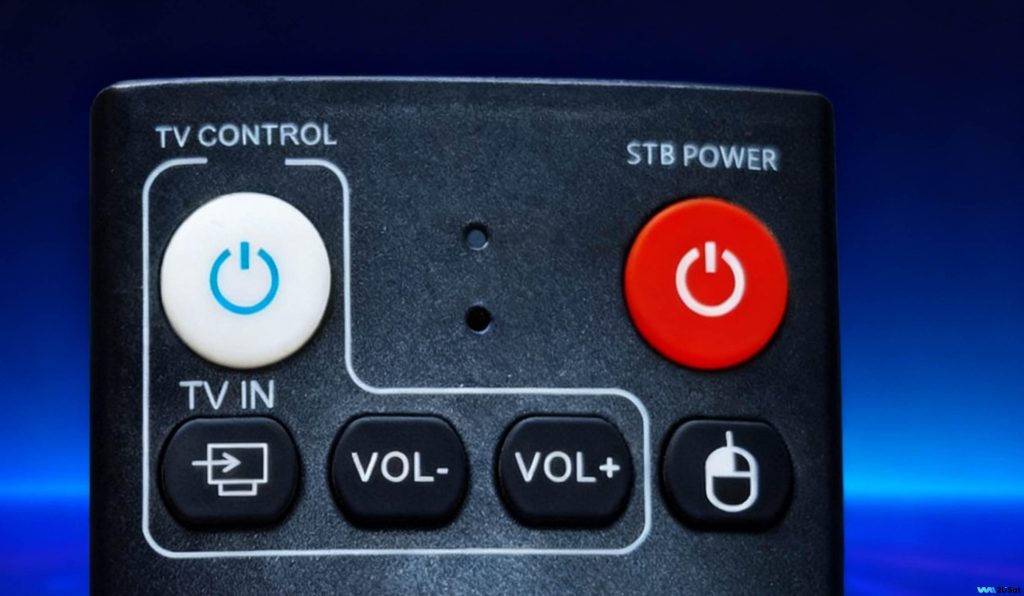
Power On / Off WE2USAT Device
The most basic operation is turning your WE2USAT device on and off.
Locate the red “STB POWER” button at the top right corner of the remote.
Press once to power on the device; the TV box indicator light will turn green.
TV Power Control
Use the white button at the top left to turn your TV on or off.
Press and hold for 3 seconds to power off the WE2USAT device.
TV Input Source Switching
Quickly switch between TV input sources.
If your TV shows “No Signal”, press this button to change the input.
Press and hold for 2 seconds to automatically scan available input sources.
Volume + / –
Adjust the TV volume easily using the dedicated volume buttons.
Mouse Mode On / Off
Press the Mouse button to activate cursor mode.
Use the directional keys to move the on-screen cursor.
Press again to exit mouse mode and return to standard button navigation.
2. Numeric Keypad Functions

Number Keys (0–9)
Enter numbers, Wi-Fi passwords, account passwords, or search for specific channels and content.
Last Watch / Delete Button
Quickly return to the previously watched channel.
Also works as a delete key when correcting text or password input.
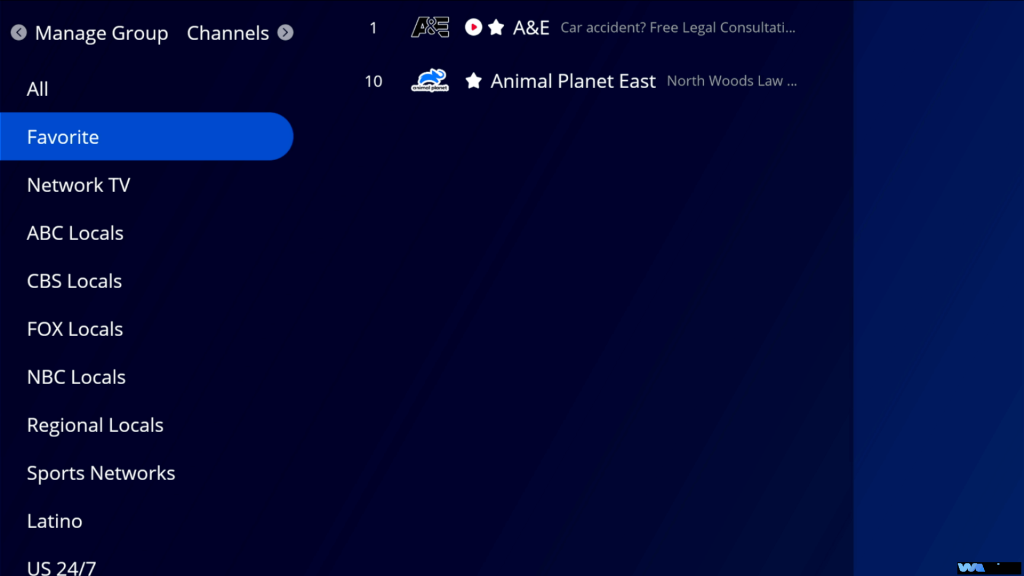
Favorite Button
Short press: Open your favorites list for quick access.
Press and hold (2 seconds): Add the current channel or app to your favorites.
For detailed steps, refer to How to Add Channels to Favorites.
3. Menu Navigation Controls
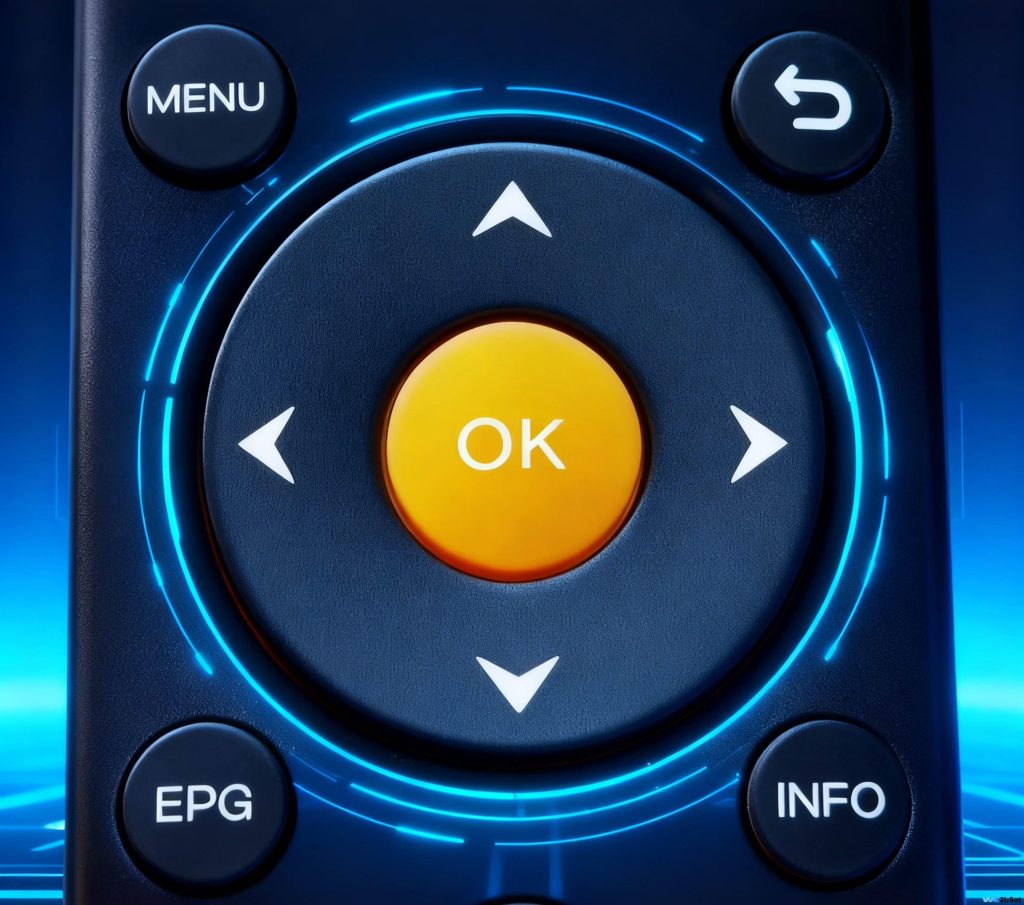
Directional Keys (Up / Down / Left / Right)
Navigate through menus, apps, and on-screen options smoothly.
OK Button
Confirm selections or open highlighted menu items.
Back Button
Return to the previous screen or menu level.
Example: Exit a submenu and go back to the main Settings menu.
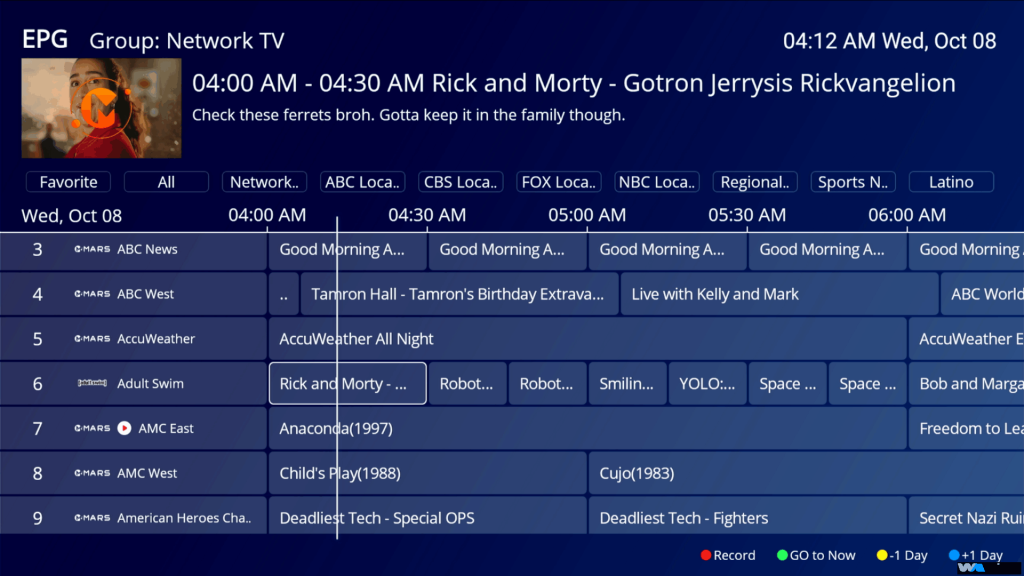
Electronic Program Guide (EPG)
View the 7-day TV program guide.
Check program names, broadcast times, and categories.
Supports filtering and searching.
Press OK to set reminders for upcoming shows.
Info Button
Display detailed information about the current content, including video resolution, audio format, duration, and system time.
Menu Button
Open the on-screen options menu.
Adjust playback settings, aspect ratio, subtitles, and more.
4. Basic Function Keys
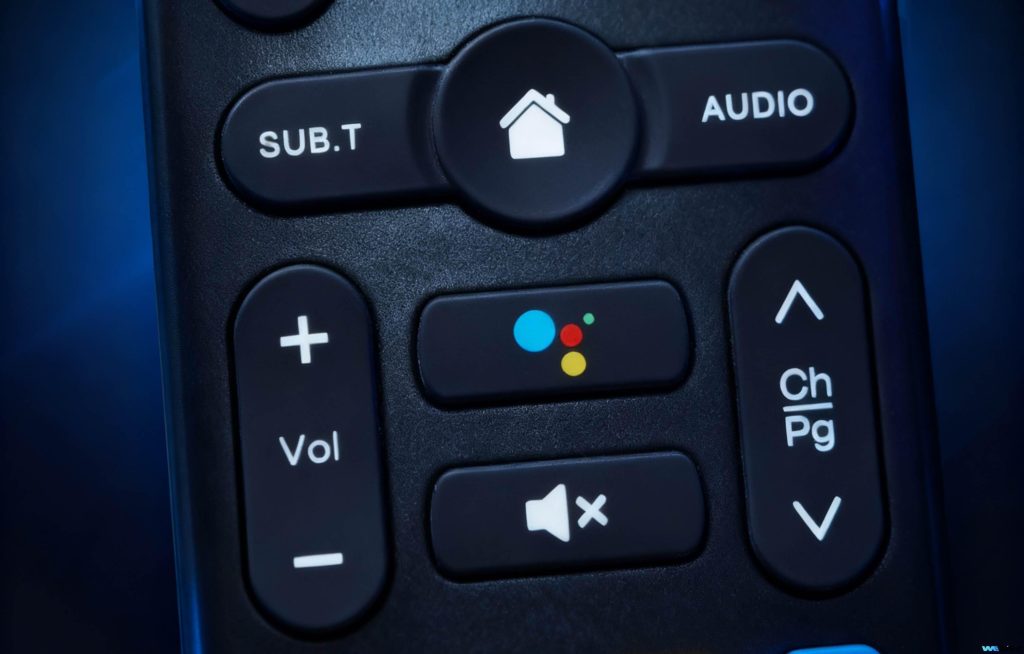
CH + / – (Channel Up / Down)
Quickly scroll through channels.
Volume Control & Mute
Use Volume + or Volume – to adjust sound levels.
Press Mute to instantly silence audio.
Press again to restore the previous volume.
Voice Control Button
Press and hold to speak English voice commands for hands-free operation.
Home Button
Instantly return to the home screen from any app or menu.
5. Special Function Keys
5.1 Colored Shortcut Buttons (Red / Green / Yellow / Blue)
These four color buttons can usually be customized according to your preferences.
They are ideal for setting quick shortcuts to frequently used features.
(Refer to How to Set Remote Control Shortcuts for details.)
5.2 Streaming App Shortcuts
Dedicated buttons for popular streaming platforms, including:
- YouTube
- Netflix
- Prime Video
- Disney+
With one press, you can launch your favorite streaming app instantly—no waiting, no extra steps.