
If your We2usat TV box is experiencing slow performance, frequent app crashes, or unexpected errors, performing a factory reset is often the most effective solution. A We2usat factory reset restores your device to its original settings, clears all cached data, and can fix most software-related problems. In this detailed guide, we’ll show you step-by-step instructions to safely reset your TV box and troubleshoot common post-reset issues.
⚠️ Important: A factory reset will erase all data, including installed apps, settings, and personal files. Make sure to backup your important content before starting the process.
Why You Might Need a Factory Reset
Some common reasons to perform a We2usat factory reset include:
TV box is running slow or freezing.
Apps are not loading or crashing frequently.
Streaming services fail to connect or buffer constantly.
Errors after installing third-party apps or updates.
To prepare your device for resale or gift.
A factory reset essentially restores your TV box to a “like-new” state, fixing most software issues caused by corrupted data or incompatible apps.
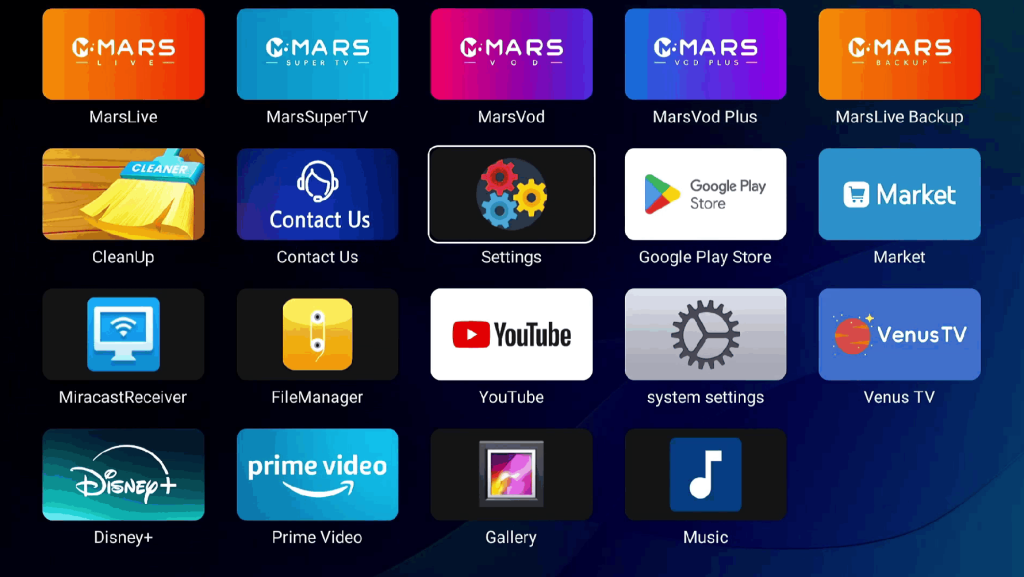
Step 1: Open the Settings Menu
Turn on your We2usat TV box and navigate to the home screen.
Locate the Settings icon and click it to enter the main settings menu.
This is the first step for accessing all system options including network, display, and reset features.
Step 2: Access General Settings
Once inside the Settings menu:
Select General to open general system settings.
Here, you will find options for storage, device info, and system updates.
This step ensures you are in the correct menu before initiating a factory reset.

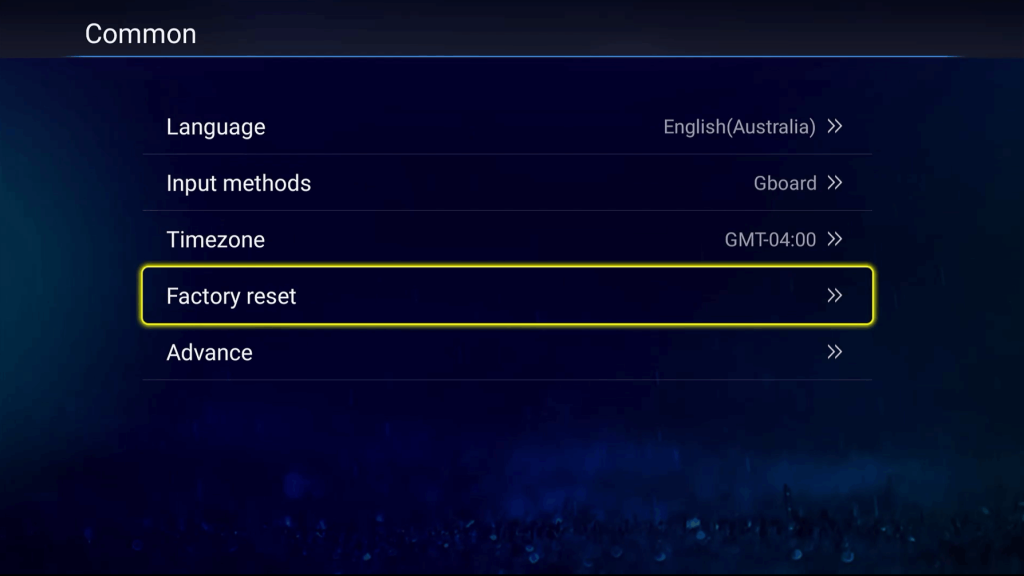
Step 3: Select Factory Reset
In the General Settings section, locate Factory Reset.
Click it to enter the data wipe confirmation page.
At this stage, your TV box is ready to erase all data and restore default settings.
Step 4: Confirm Data Erasure
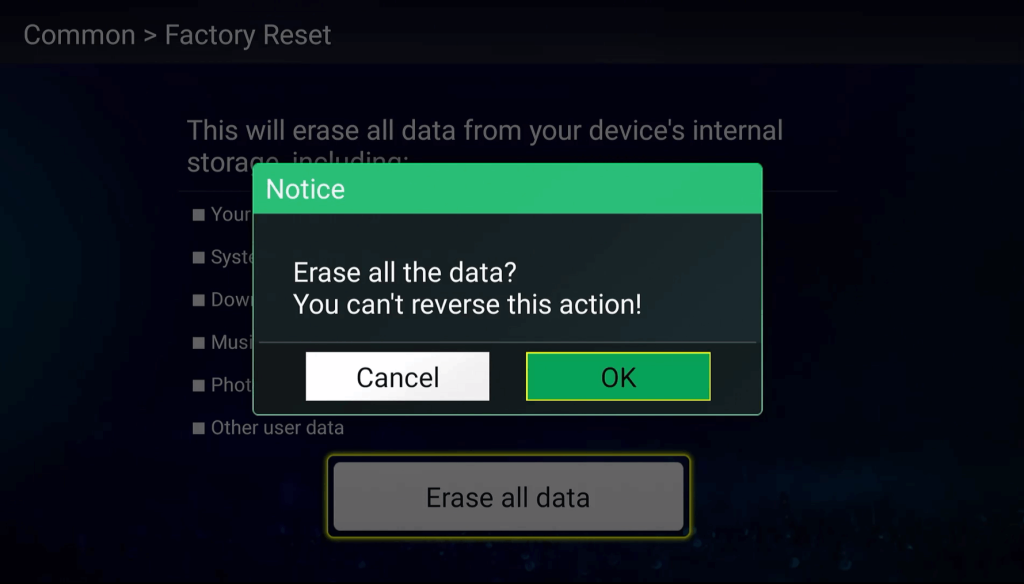
Click Erase All Data.
A second confirmation popup will appear. Click OK to proceed.
⚠️ Reminder: Once you confirm, all apps, account info, and downloaded content will be permanently deleted.

Step 5: Wait for the Reset to Complete
After confirming, your We2usat TV box will start the factory reset process automatically.
Do not turn off the TV box during the reset.
The process may take several minutes depending on your device model.
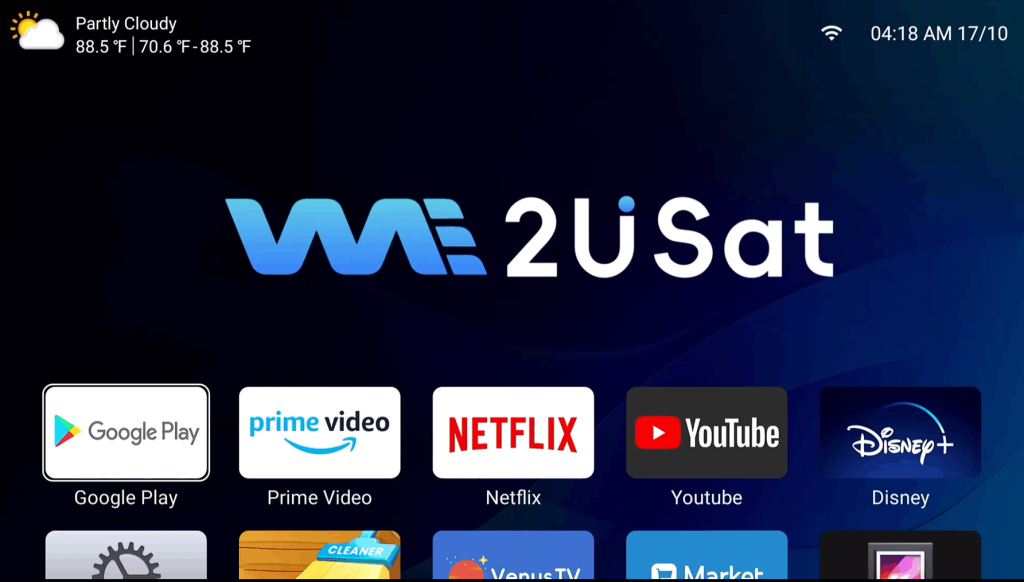
After completion, your TV box will reboot and return to default settings.
At this point, the TV box is essentially like new, ready for fresh configuration.
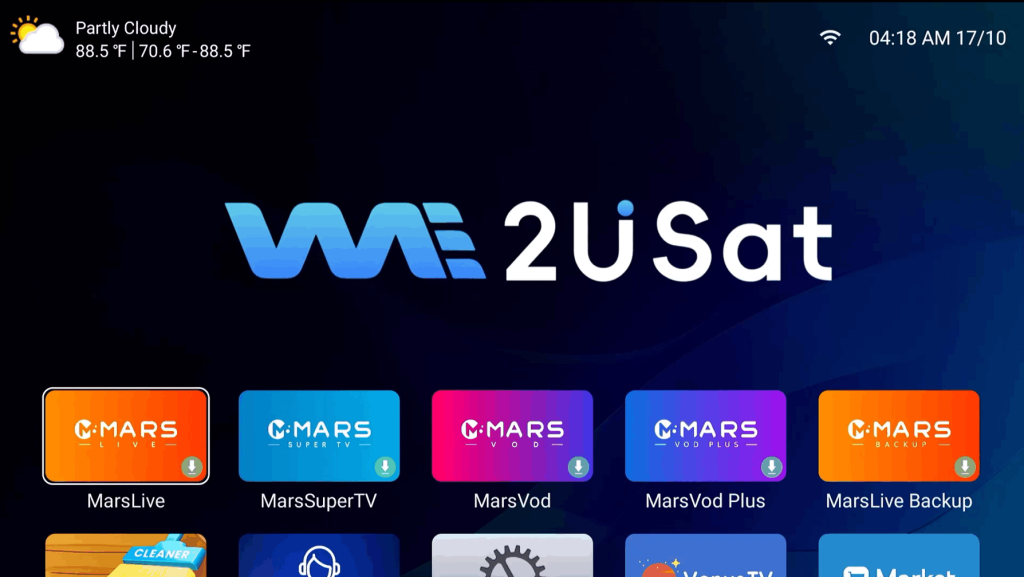
Reinstall Apps After Reset
Since all previously installed apps are removed:
Re-download your favorite streaming apps like Netflix, YouTube, or Mars series apps.
Sign in again with your accounts.
Check for system updates to ensure smooth performance.
If any apps, such as Mars series applications, do not appear:
Check your network connection.
Refresh the page or restart the device.
Clear the cache if needed.
Common Issues and Troubleshooting
TV Box Won’t Reset
- Ensure the device is properly powered and connected to electricity.
- If the reset process freezes, unplug for 10 seconds and restart.
Apps Not Showing After Reset
- Reconnect to Wi-Fi or Ethernet.
- Clear system cache via Settings > Storage > Clear Cache.
- Reinstall missing apps from the official source.
Performance Still Slow
- Consider software updates under Settings > System Update.
- Limit running apps and remove unnecessary third-party applications.
Tips for Maintaining Your We2usat TV Box
Regularly clear cache to avoid slow performance.
Avoid installing too many third-party apps simultaneously.
Keep firmware up to date for security and stability.
Backup important apps and settings periodically.