For users seeking the most stable connection—especially when streaming 4K sports events or high-bitrate movies—we highly recommend using an Ethernet connection. Below are the steps for setup and troubleshooting common issues.
1. Wired Ethernet Connection (Recommended for 4K/Live Streaming)
1.1 Setup Steps
1. Physical Connection:
Use a Cat5e or higher-rated Ethernet cable for the connection.
Connect one end of the cable to the Gigabit Ethernet port (supports speeds up to 1000Mbps) on the WE2USAT device, and the other end to any available LAN port on your router. Insert the cable until you hear a click.
The Ethernet LED indicator on the device should light up or flash green to show the physical connection is successful.
2. System Configuration:
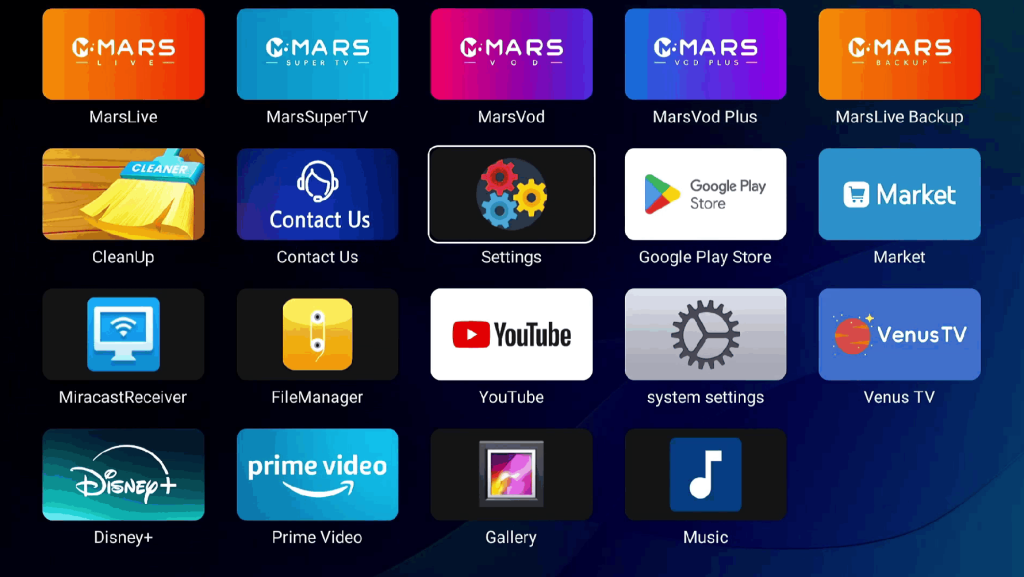
Navigate to Settings → Network & Internet → Ethernet. The system will automatically detect and establish the connection. Once connected, you will see the status as Connected.
3. Disable Wi-Fi to Avoid Conflicts:
If you were previously connected via Wi-Fi, go to the Wi-Fi settings and select Turn Off. This ensures all network traffic is routed only through the Ethernet cable, preventing potential lag from automatic connection switching.
1.2 Common Ethernet Issues and Solutions
Issue: “Disconnected” Display and Indicator Light Off
Solution:
Ensure both ends of the Ethernet cable are securely plugged into their respective ports. Re-insert both ends to ensure proper connection.
Try using a different Ethernet cable to rule out any cable faults.
Plug the Ethernet cable into a different LAN port on your router to determine if the issue is with the router’s port.
Issue: Connected, But Slow Speed
Solution:
Verify you’re using Cat5e or higher-rated Ethernet cables. Older Cat5 cables only support speeds up to 100Mbps, which might not meet the requirements for high-speed internet.
Check your router settings to see if Quality of Service (QoS) is enabled. If it is, prioritize the WE2USAT device to ensure it gets the necessary bandwidth.
Connect a computer to the same Ethernet cable and test the speed. If the computer’s speed is fine, try restarting your WE2USAT device by holding the power button.
Issue: Wi-Fi Works, but Ethernet Connection Fails
Solution:
Go to the Ethernet settings on your device and ensure IP settings are set to DHCP mode, allowing the device to automatically obtain a valid IP address.
Visually inspect the Ethernet port for any dust or physical damage. Clean the port carefully with a dry cotton swab if necessary.
Update your WE2USAT firmware by going to Settings → System Update. This could resolve any driver-related issues that might be causing Ethernet problems.
2. The Ultimate Fix: The Three-Step Reset Process
If the previous steps do not resolve the issue, follow the “Reset – Test – Contact” process:
1. Reset Network Settings:
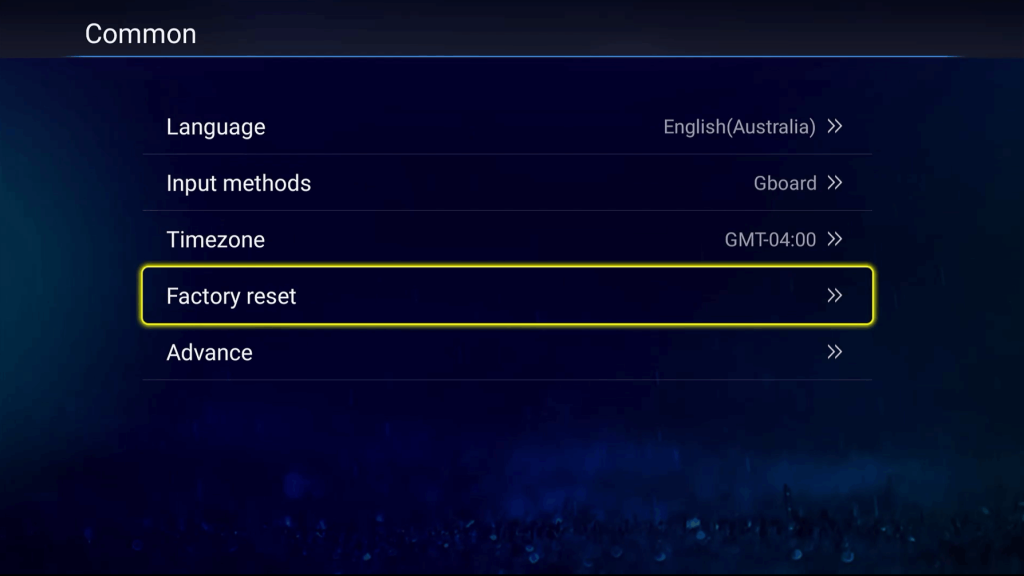
Go to Settings → Common → Restore Factory Settings → Clear All Data. This will erase all saved network configurations, allowing you to reconfigure your connection.
2. Cross-Testing:
Use the same connection method (wired or wireless) to connect another device (like a computer or another TV box) to the same network. If the issue persists across all devices, the problem likely lies with your home network. In this case, contact your Internet Service Provider (ISP).
If only the WE2USAT device is affected, proceed to the next step.
3. Official Support:
Document the details of your issue (e.g., “Ethernet disconnects after 5 minutes”) and find your device’s MAC address under Settings → About Device.
Contact the WE2USAT technical team via online chat on our website or email us at t@we2usat.net. Our team will provide a customized solution within 24 hours.