How to Adjust Screen Resolution on Your We2usat Device: Step-by-Step Guide

If you’re using a We2usat TV box or streaming device and notice that your video isn’t as sharp or clear as you’d like, don’t worry. Adjusting the screen resolution is simpler than it seems—and you don’t need any technical skills to get it right.

This We2usat resolution guide will show you exactly how to optimize your display for the best viewing experience.

Step-by-Step Guide to Adjusting Screen Resolution

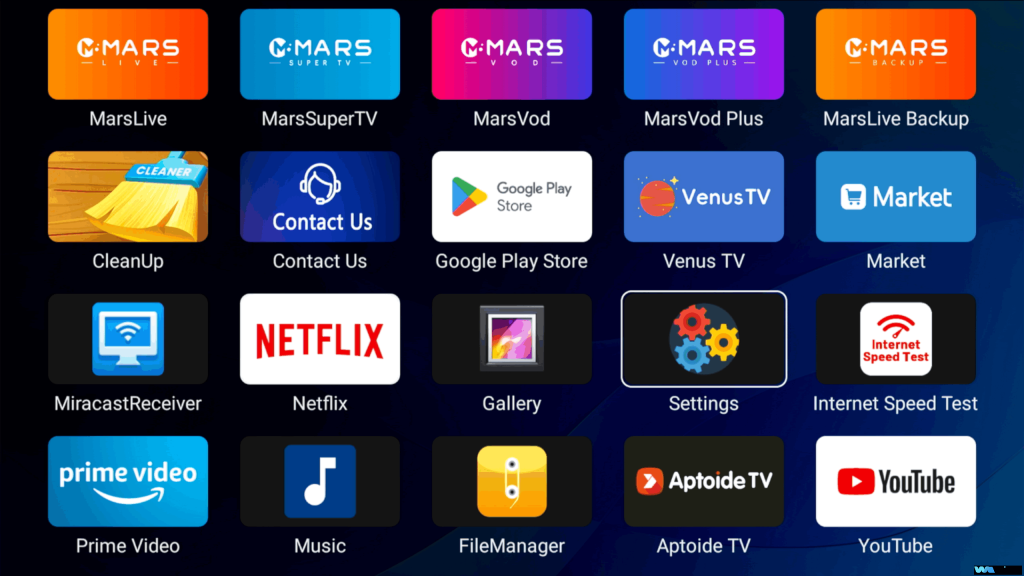
1 Go to the Home Screen

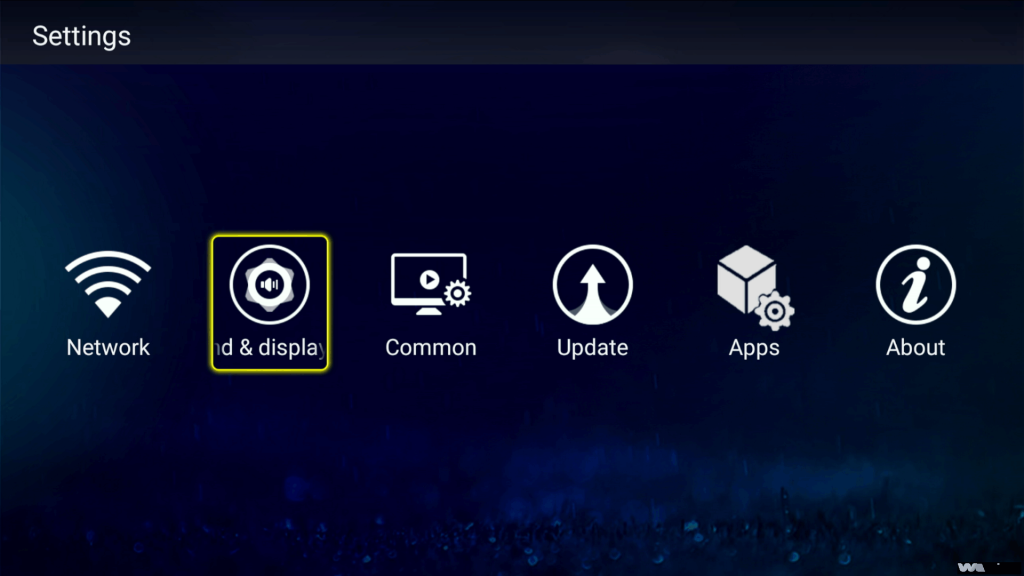
Press the “Home” button on your We2usat remote to return to the main screen. Locate and select the “Settings” icon.

2 Access Sound & Display Settings

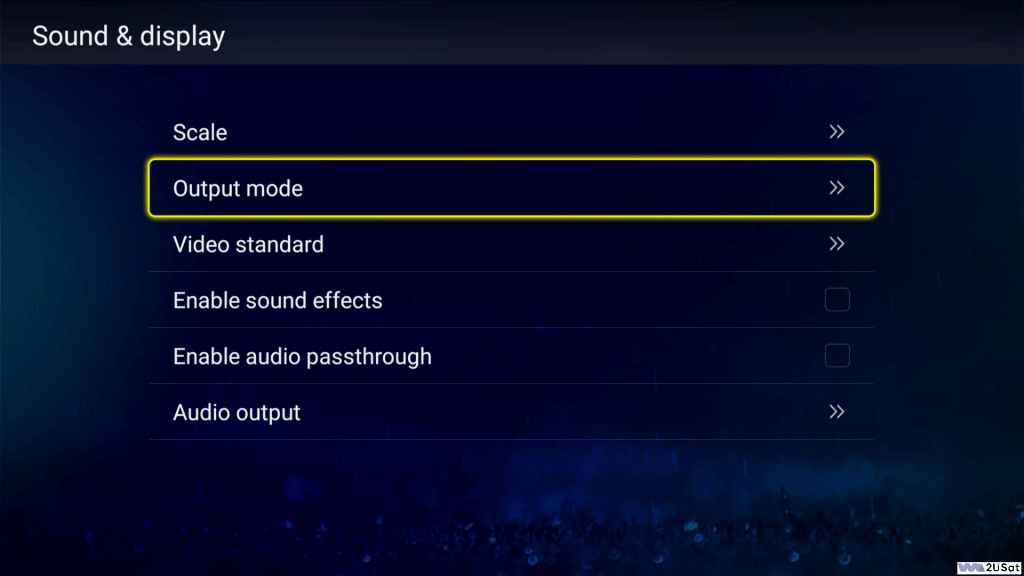
Once inside Settings, a sidebar menu will appear. Navigate to “Sound & Display”, then select “Output Mode”.

3 Choose Your Output Mode

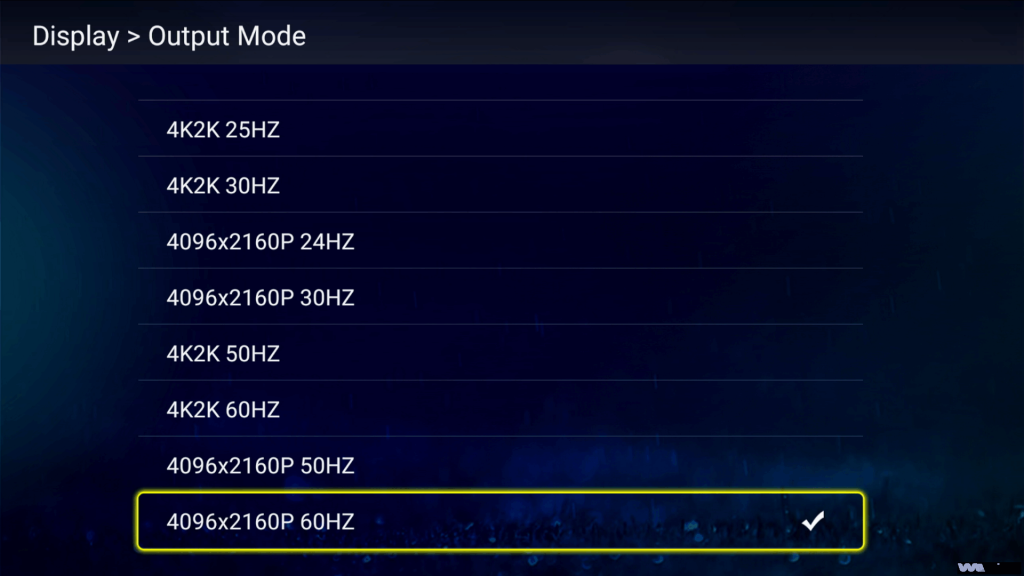
The Output Mode menu lets you select different screen resolution options.

4 Select Your Desired Resolution

Pick the resolution level that best suits your needs. Higher resolutions provide sharper images, but they require faster internet speeds.

Pro Tips for Optimal Viewing

Choose a resolution that matches your network speed: Selecting a resolution higher than what your bandwidth can handle may cause buffering issues and a poor viewing experience.

Balance clarity and performance: Sometimes, a slightly lower resolution ensures smoother streaming and avoids interruptions.

Just follow these simple steps, and you can easily enjoy clear, smooth video on your We2usat device.

Leave a Comment

Your email address will not be published. Required fields are marked *

Translate »
Emily WA
WhatsApp
Email
WhatsApp
Email
Emily WA
Scroll to Top