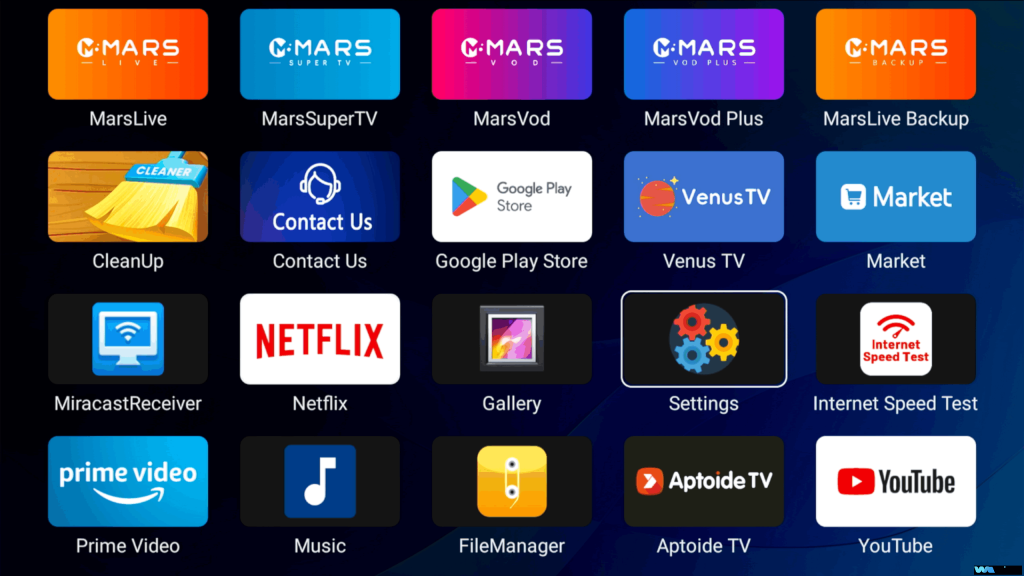
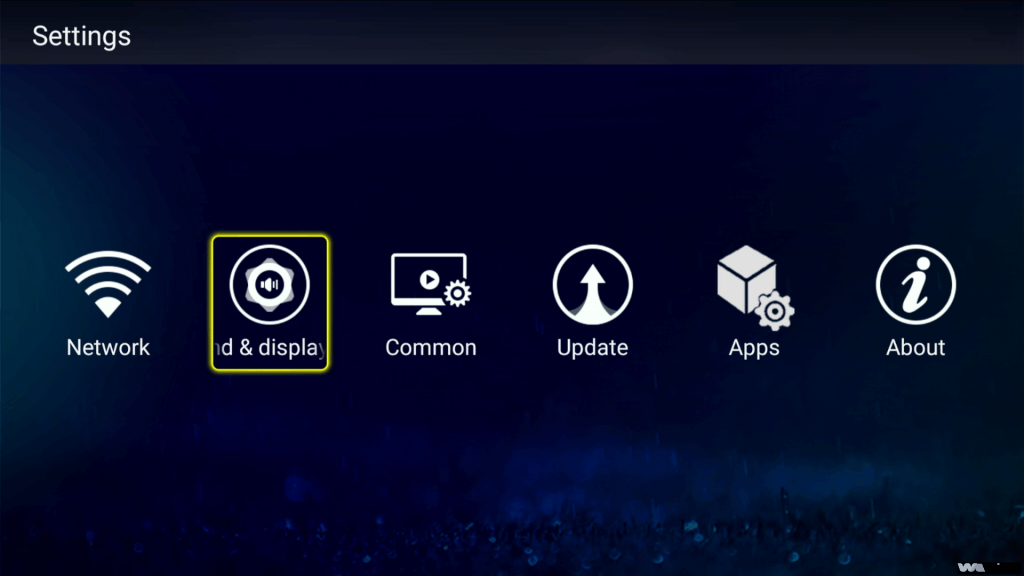
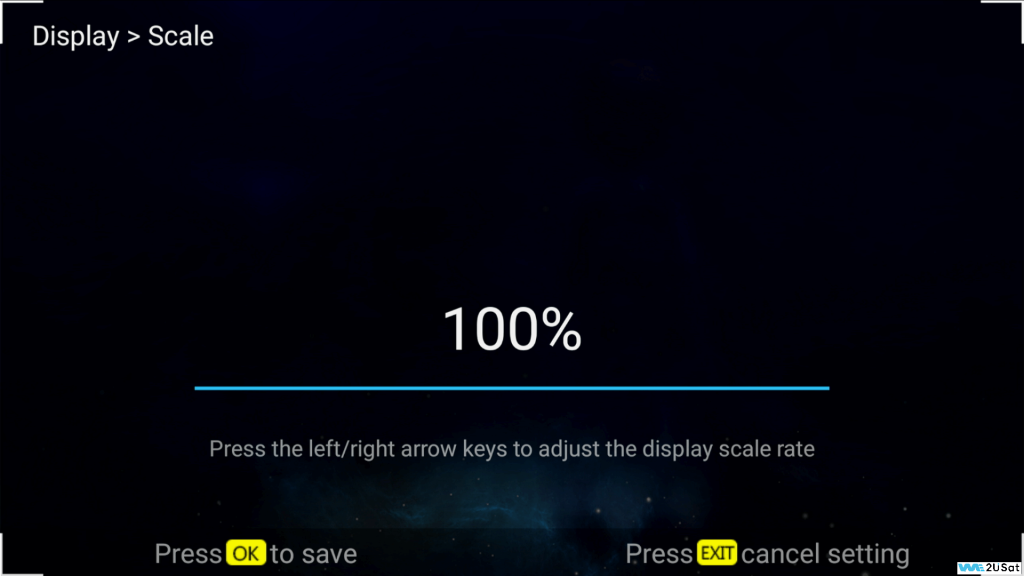
Step 2: Select “Display & Sound”
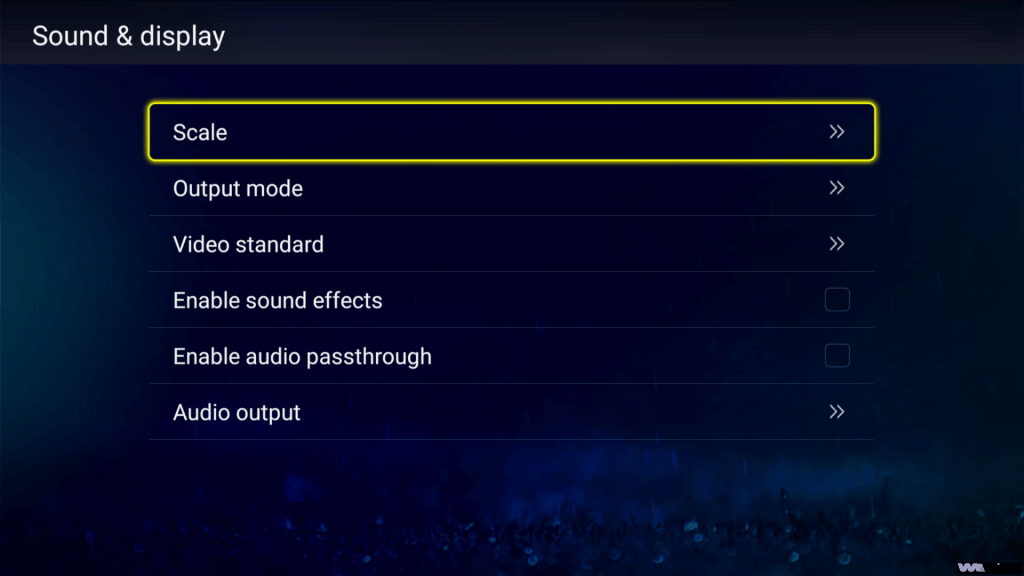
Next, go to Display & Sound, then choose the Scaling or Screen Adaptation option. This allows you to fine-tune your screen size for the best viewing experience.
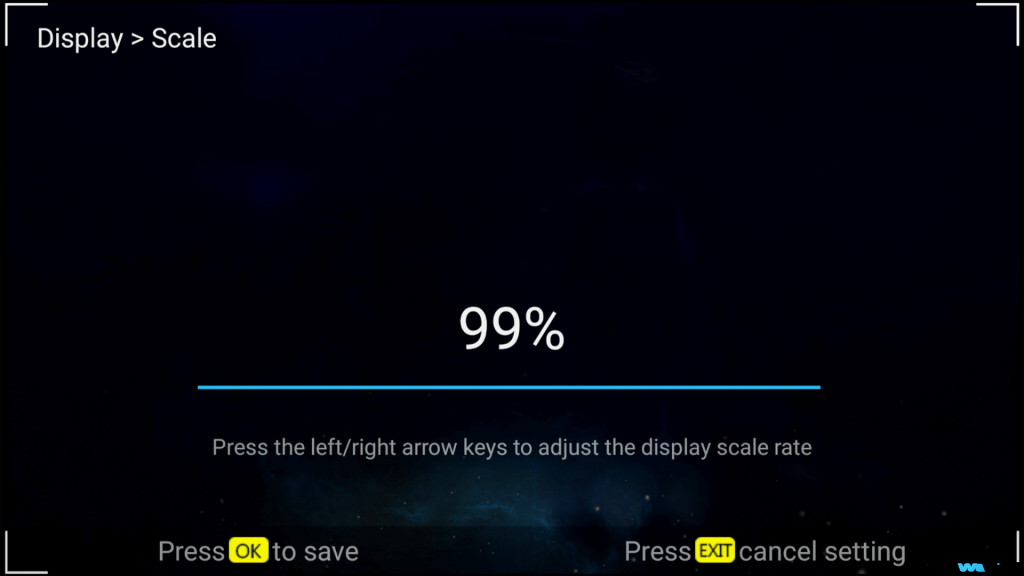
Step 3: Adjust Screen Size
Use the central navigation key to zoom in or out. While adjusting, keep an eye on the screen for the following:
✅ No cropping at the edges of the screen
✅ Text appears natural, clear, and readable
✅ Images are not stretched or distorted
✅ Icons remain sharp and precise
Pro Tips:
If unsure which setting looks best, try each option one by one and compare the results.
Aim for clear text and natural, visually appealing display.
Test the adjustments in your most frequently used apps.
Choose the setting that is easiest on your eyes for long-term viewing.
With just these three steps, your We2usat screen can perfectly match your preferences, providing a clearer and more comfortable viewing experience.
For further assistance, our technical support team is always available to help you optimize your device.