How to Connect Your We2Usat TV Box to WiFi: Complete Step-by-Step Guide

Are you having trouble connecting your We2Usat TV box to WiFi? Does streaming your favorite channels keep buffering, or do system updates fail midway? Don’t worry! This complete guide will walk you through every step to connect your TV box to WiFi, troubleshoot common issues, and enjoy seamless streaming.

Why WiFi Connection is Important for Your We2Usat TV Box

A stable WiFi connection is essential for:

  • Smooth streaming of movies, TV shows, and live channels

  • Fast and uninterrupted system updates

  • Downloading apps and accessing Android TV features

  • Avoiding buffering and lag during streaming

Optimizing your network setup ensures the best We2Usat TV box performance.

Step 1: Prepare Your Devices

Before connecting, make sure:

  • Your We2Usat TV box is powered on

  • Your WiFi router is running correctly

  • You know your WiFi network name (SSID) and password

  • The TV box is within a good signal range of the router

Having everything ready will make the connection process faster and smoother.

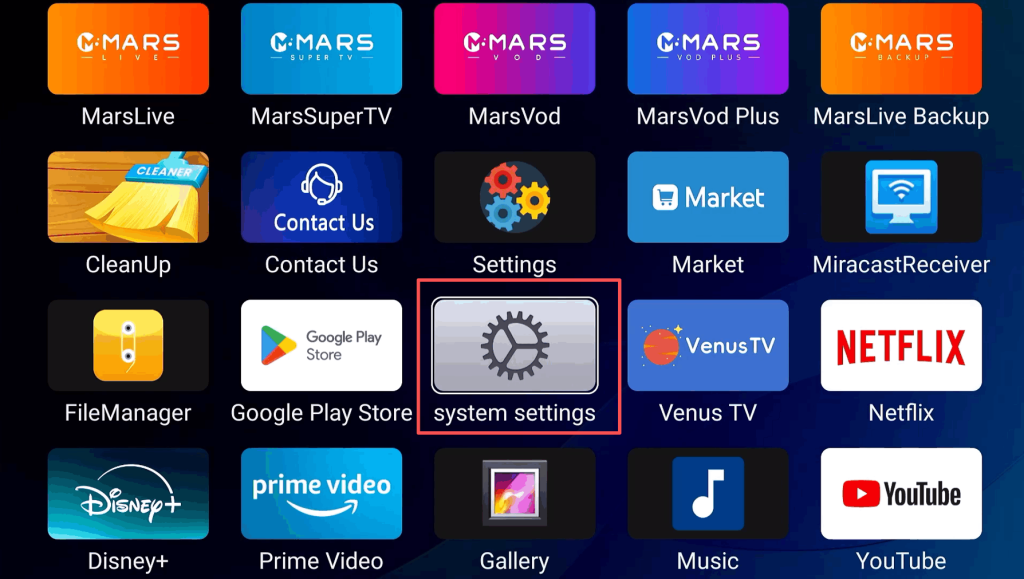
Step 2: Access System Settings

On the TV box home screen, find and click “System Settings”. This section allows you to configure all device settings, including network and internet options.

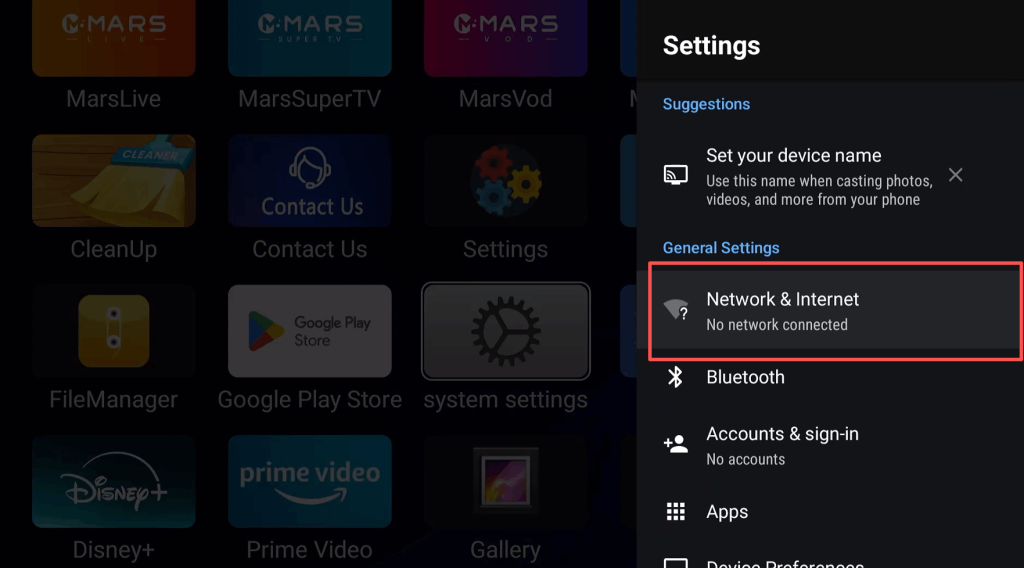
Step 3: Select Network & Internet

Inside System Settings, choose “Network & Internet”. This opens the network configuration page where you can manage WiFi connections and check signal strength.

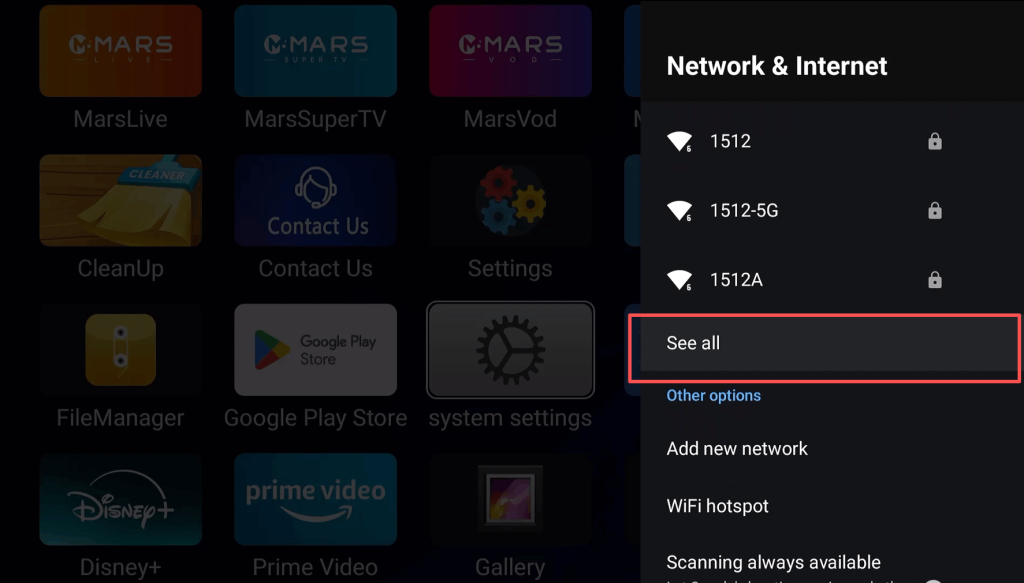
Step 4: View All Available WiFi Networks

Click “View All” to display all nearby WiFi signals. Make sure you select the correct network to avoid errors during connection.

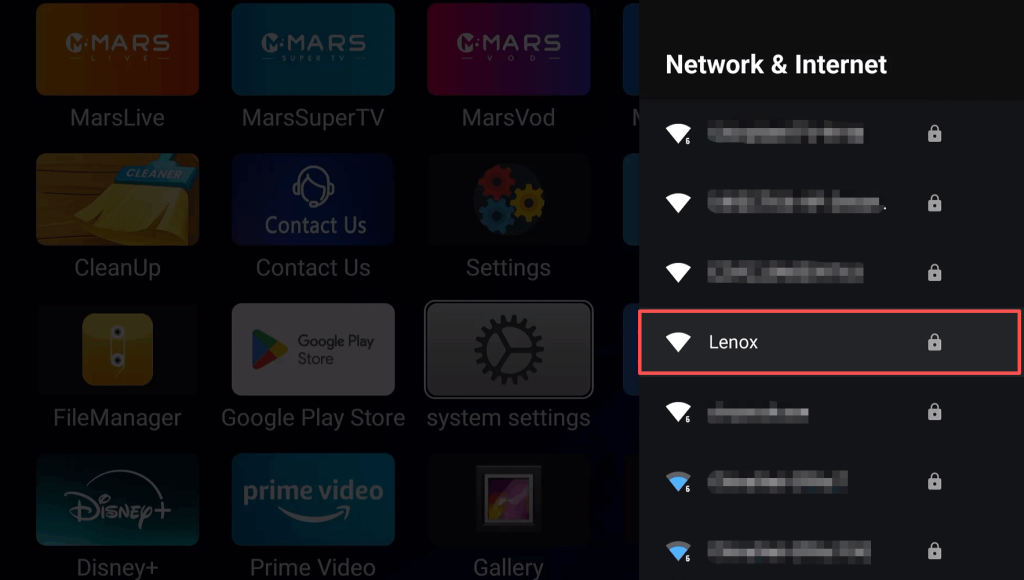
Step 5: Connect to Your WiFi Network

  • Select the desired WiFi network from the list

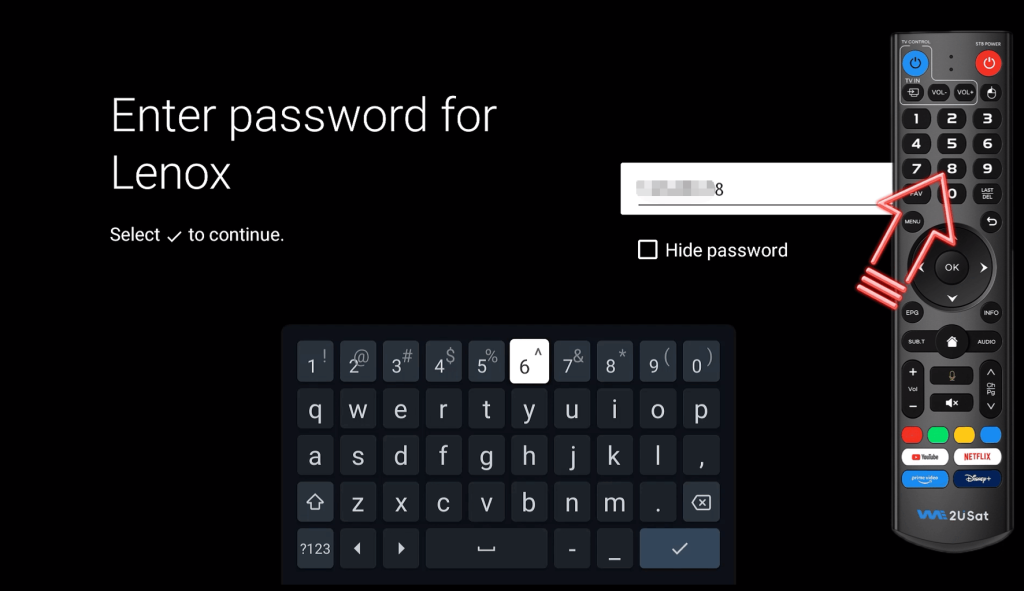
  • Enter your WiFi password using the remote

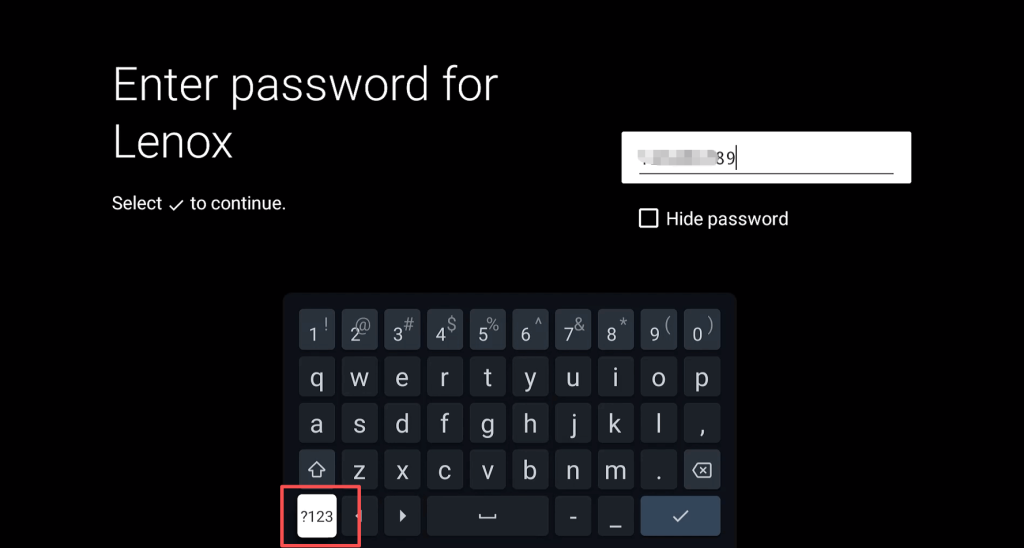
  • If the password includes special characters, click the “?123” button to switch the keyboard layout

  • Confirm the password by clicking the “√” button

Step 6: Wait for Successful Connection

After entering your password, wait for a few seconds. Once the status shows “Connected”, your TV box is online and ready to stream content smoothly.

Troubleshooting WiFi Connection Issues

If your TV box fails to connect, try the following solutions:

  1. Check the Password: Make sure the WiFi password is correct, including uppercase, lowercase, and special characters.

  2. Restart Devices: Power cycle both your WiFi router and We2Usat TV box, then try reconnecting.

  3. Check Signal Strength: Weak WiFi signals can cause connection failures; consider moving the router closer or using a WiFi extender.

  4. Update TV Box Firmware: Ensure your We2Usat TV box is running the latest firmware for network compatibility.

FAQs About We2Usat TV Box WiFi Connection

Q1: Can I connect multiple We2Usat TV boxes to the same WiFi network?

Yes, as long as your router supports multiple devices and provides sufficient bandwidth.

Q2: Why does my streaming buffer even after connecting to WiFi?

Buffering may occur due to weak signal strength, low internet speed, or high network traffic. Try a wired Ethernet connection or upgrade your internet plan.

Q3: Can I connect to a 5G WiFi network?

Yes, the We2Usat TV box supports both 2.4GHz and 5GHz WiFi bands. 5GHz offers faster speeds but shorter range.

Q4: How do I reconnect if WiFi drops frequently?

Restart your router and TV box, check for firmware updates, and ensure there’s no interference from other devices.

Leave a Comment

Your email address will not be published. Required fields are marked *

Translate »
Emily WA
WhatsApp
Email
WhatsApp
Email
Emily WA
Scroll to Top