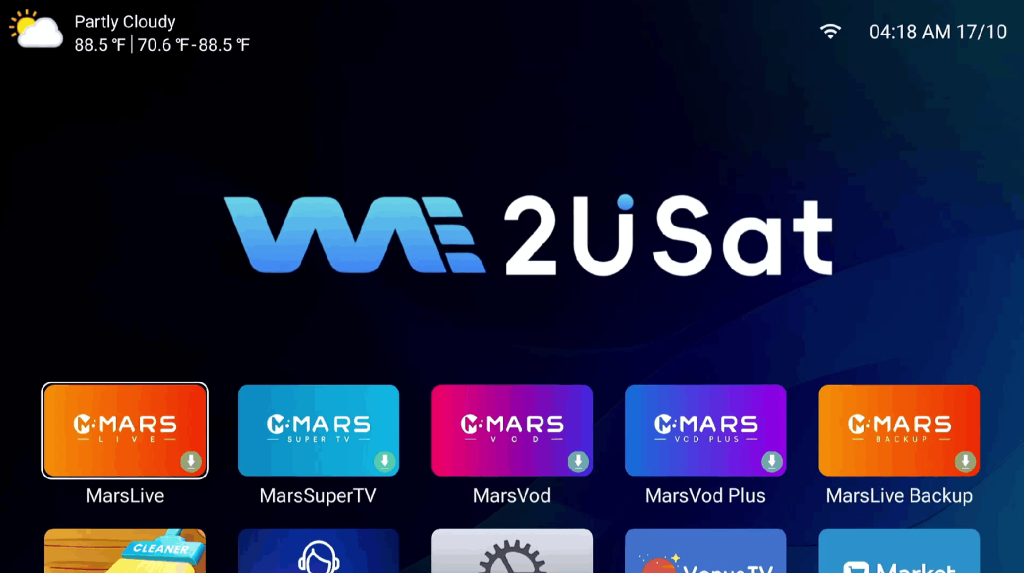
Are you experiencing crashes, freezing, or performance issues with your We2USAT apps? Whether it’s streaming apps, games, or pre-installed utilities, sometimes apps may fail to open or respond properly. A simple and effective solution is to uninstall and reinstall the app. This step can fix glitches, improve performance, and ensure a smoother experience on your We2USAT smart TV.
App crashes or slow performance can occur for various reasons: corrupted files, outdated versions, or conflicts with other apps. By uninstalling and reinstalling the app, you remove corrupted data and give the app a fresh start. This method works for both pre-installed apps and apps downloaded from the We2USAT store.
Step-by-Step Instructions to Uninstall and Reinstall We2USAT Apps
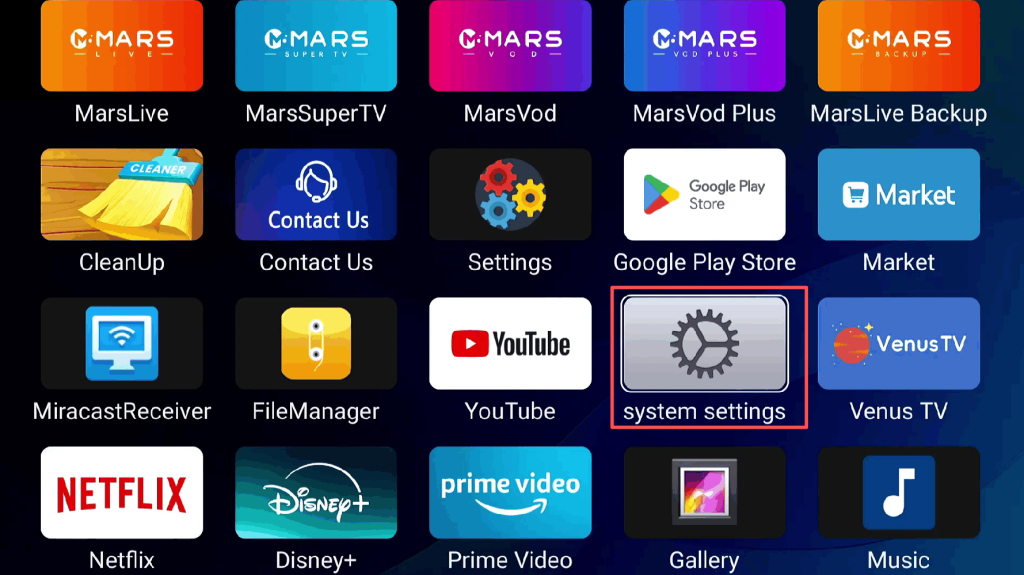
1. Access System Settings
Start from the We2USAT home screen and locate System Settings. This section allows you to manage all apps, device storage, and system preferences.
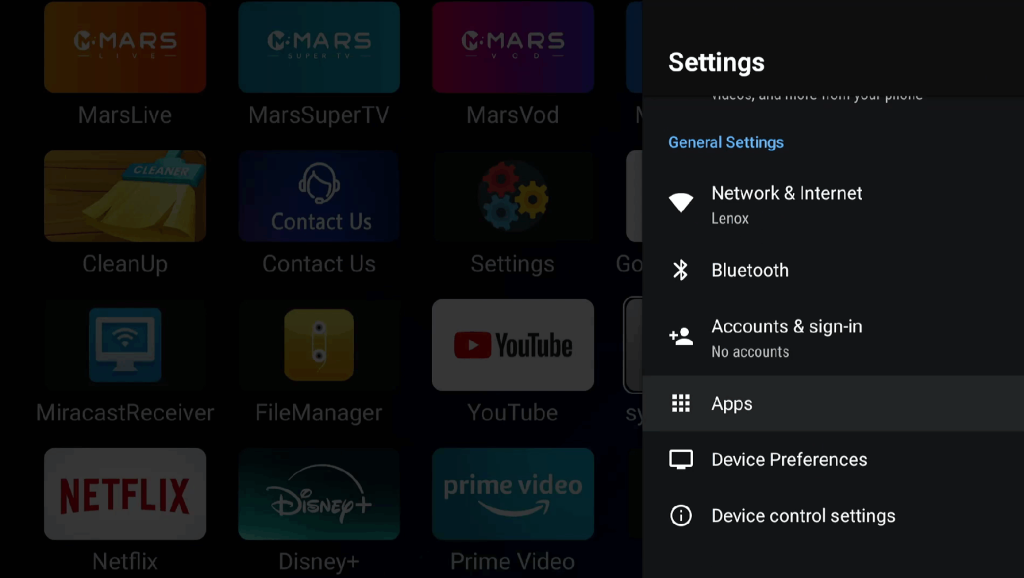
2. Open App Management
Inside the system settings, select Apps or App Management. Here, you will see a list of all installed applications on your We2USAT device.
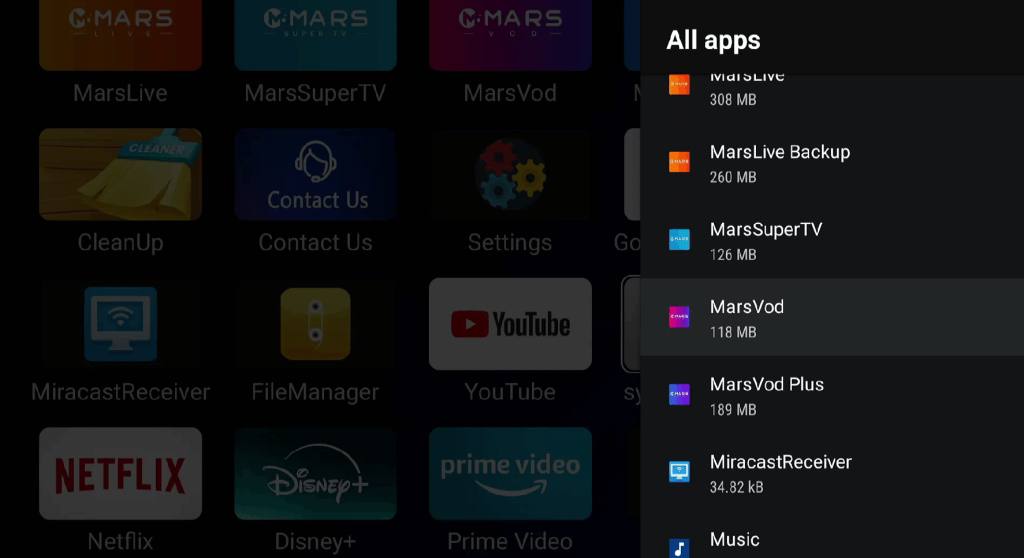
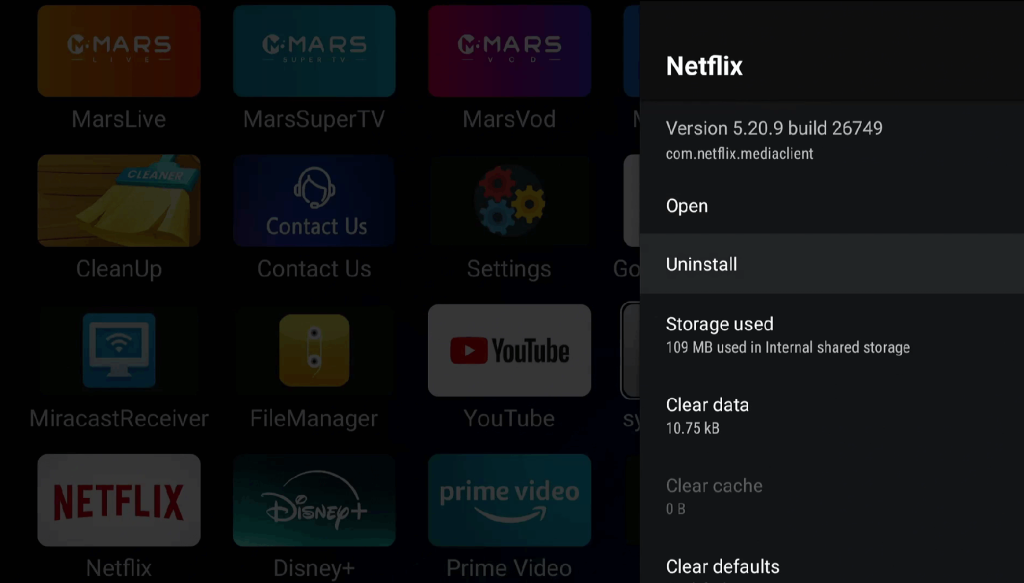
3. Select and Uninstall the App
Scroll through the app list and find the app you want to uninstall. Click on it and confirm the Uninstall action. This removes the app and its related cache from your device, helping to eliminate errors or corrupted files.
4. Reinstall the App
For pre-installed apps, you can reinstall directly from the home screen after uninstalling.
Ensure your device is connected to the internet before downloading the app again.
For downloaded apps, visit the We2USAT app store or the original source and download the latest version.
Additional Tips for Optimizing We2USAT App Performance
Keep Apps Updated: Regular updates often include bug fixes and performance improvements.
Clear App Cache: If an app becomes slow, clearing its cache can improve responsiveness.
Monitor Storage: Ensure your device has enough free space; low storage can cause apps to lag or crash.
Restart the Device: Sometimes a simple restart of your We2USAT smart TV can solve minor glitches.
Common Issues and Solutions
App Won’t Open: Uninstall and reinstall the app, then check for updates.
App Freezes During Use: Clear cache and restart the app.
Pre-installed App Missing: Re-download directly from the home screen after uninstalling.
Following these steps will help you maintain smooth operation of all We2USAT apps, ensuring uninterrupted streaming, gaming, and browsing experiences.