Are you facing the issue of no sound when you power on your TV box? This is often due to connection or settings issues, but don’t worry—it’s easy to resolve. Follow these simple steps to restore the audio:
1. Check Hardware Connections
The first step is to ensure all cables are properly connected:
Audio Cable Connection: Double-check that the audio cables (AV, HDMI, or SPDIF) are securely plugged in. Sometimes, disconnecting and reconnecting them can solve the issue.
Test with Another Device: Try connecting the audio cable to another device (such as your smartphone to the speakers) to rule out any damage to the cables.
2. Troubleshoot TV Box System Settings
If the hardware checks out, it’s time to check the system settings:
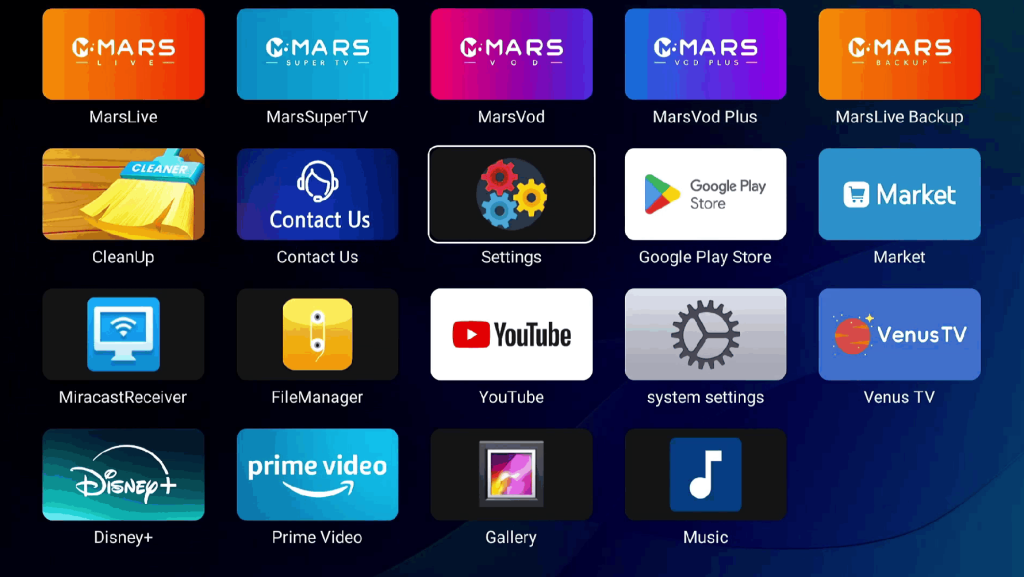
2.1 Open Settings
On your TV box’s home screen, locate the Settings icon and click to enter the settings page.
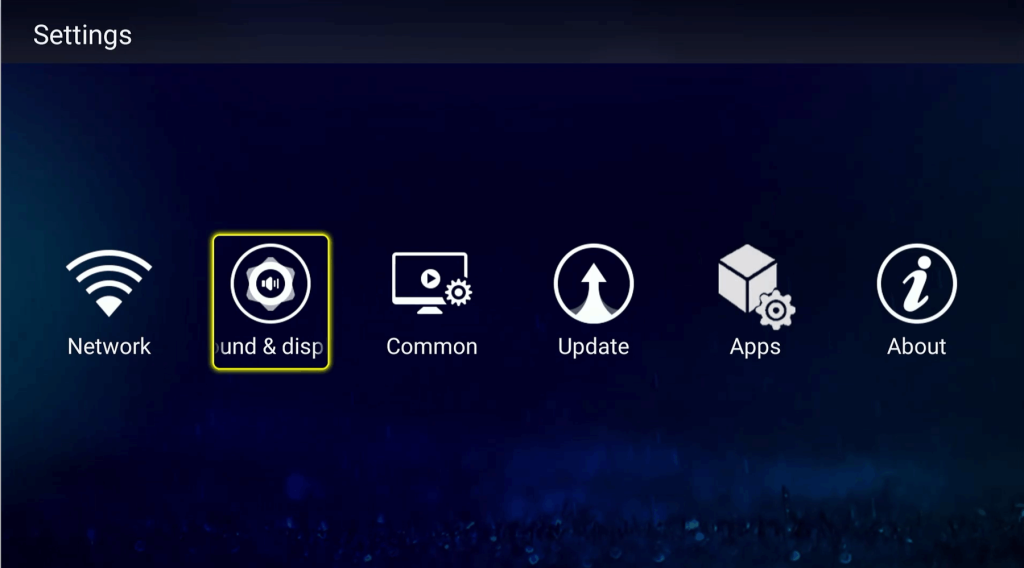
2.2 Access Audio Settings
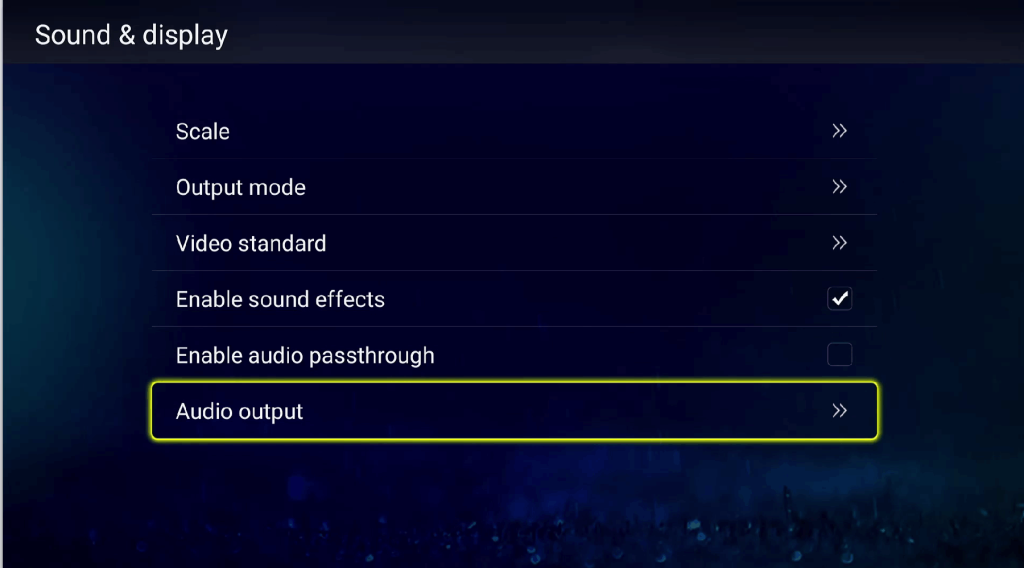
In the settings menu, navigate to Sound and Display.
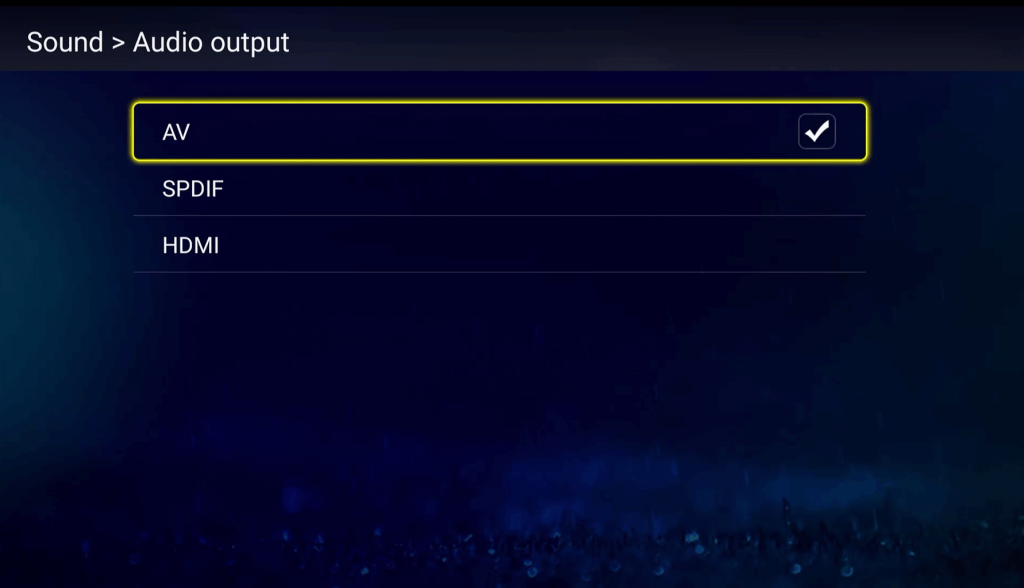
2.3 Check Audio Output Mode
Make sure the selected audio output matches your current connection:
HDMI Cable to TV: Choose “HDMI”.
SPDIF Cable to Speakers: Choose “SPDIF”.
AV Cable to Speakers: Choose “AV”.

3. Additional General Solutions
If the previous steps didn’t help, try the following:
Restart the Devices: Reboot the TV box, TV, and speakers to refresh the audio drivers and settings.
Check Volume Settings: Ensure none of the devices (TV box, TV, or speakers) are muted or set to the lowest volume.
Factory Reset: If all else fails, go to the settings and select Restore Factory Settings. This will reset the audio output settings, allowing you to reconfigure them from scratch.