In today’s smart TV era, your remote control is no longer just a tool to switch channels. With shortcut key customization, you can access your favorite apps, streaming platforms, and essential functions with just a single click. This not only enhances your TV navigation efficiency but also creates a personalized viewing experience.
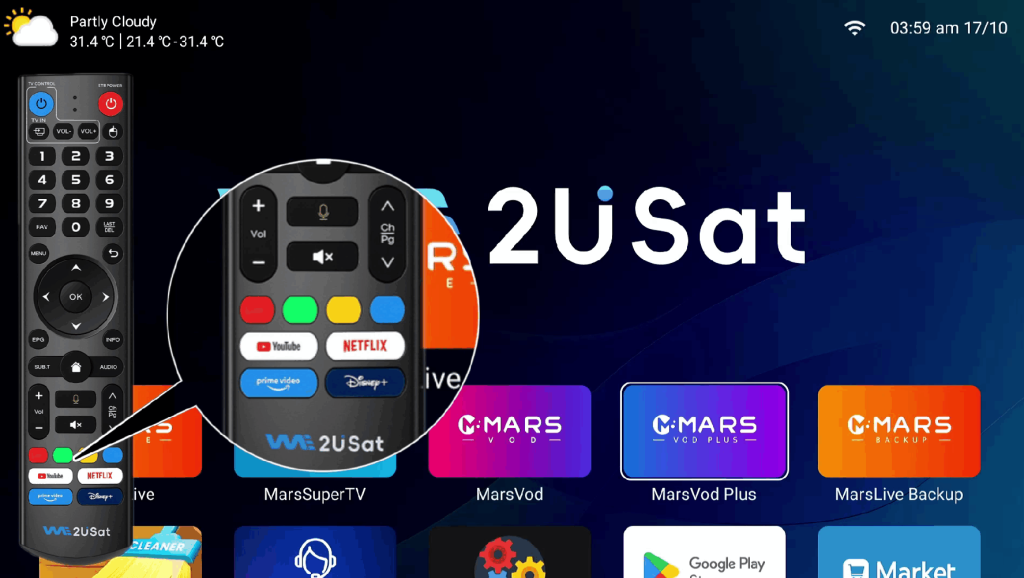
If you own a We2usat smart TV or Android TV box, setting up the red, green, yellow, and blue shortcut keys is simple and highly practical. In this guide, we’ll walk you through a step-by-step process to assign your most-used apps or functions to your remote, ensuring maximum convenience.
Why Customize Your Smart TV Remote Shortcut Keys?
Many users don’t realize how much time they spend navigating menus to open apps like Netflix, YouTube, Amazon Prime Video, or Disney+. By customizing remote shortcut keys, you can:
Access apps faster – open streaming platforms or media players instantly.
Simplify navigation – skip multiple menu layers.
Improve efficiency – control your smart TV like a pro.
Create a personalized TV experience – assign functions that match your daily habits.
Customizing your We2usat remote control is especially useful for smart TV enthusiasts, gamers, and anyone who uses multiple apps daily.
Step-by-Step Guide: Setting Red, Green, Yellow, and Blue Shortcut Keys
Follow these simple steps to assign shortcut keys on your We2usat smart TV remote:
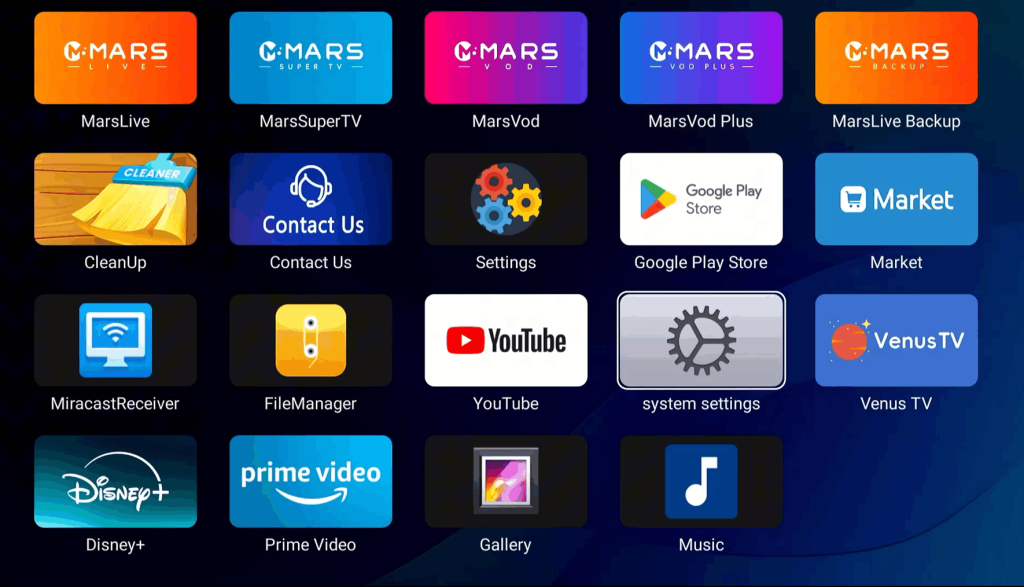
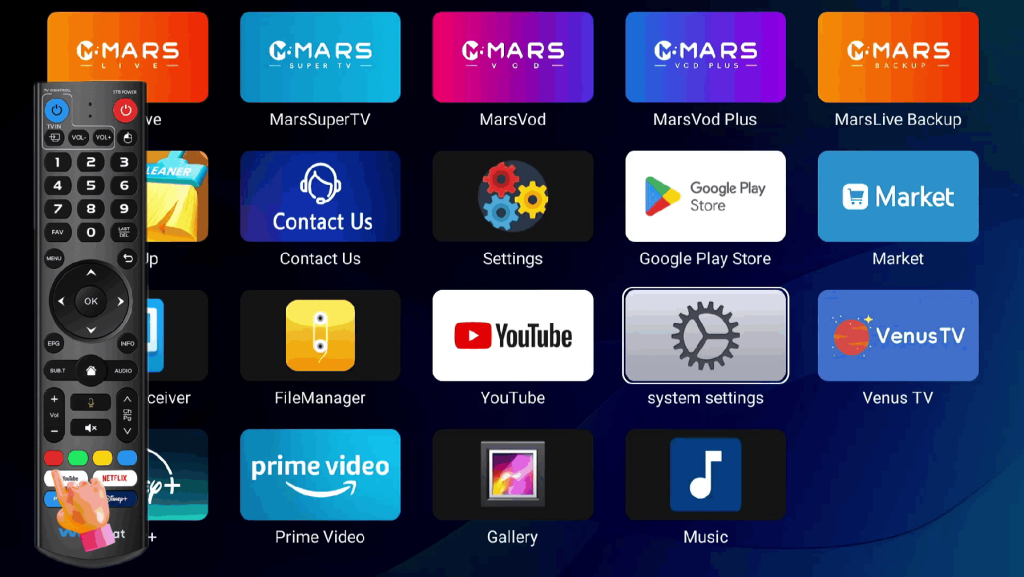
1. Open System Settings
Navigate to your TV system settings. This is where all advanced device configurations, including shortcut key settings, are located.
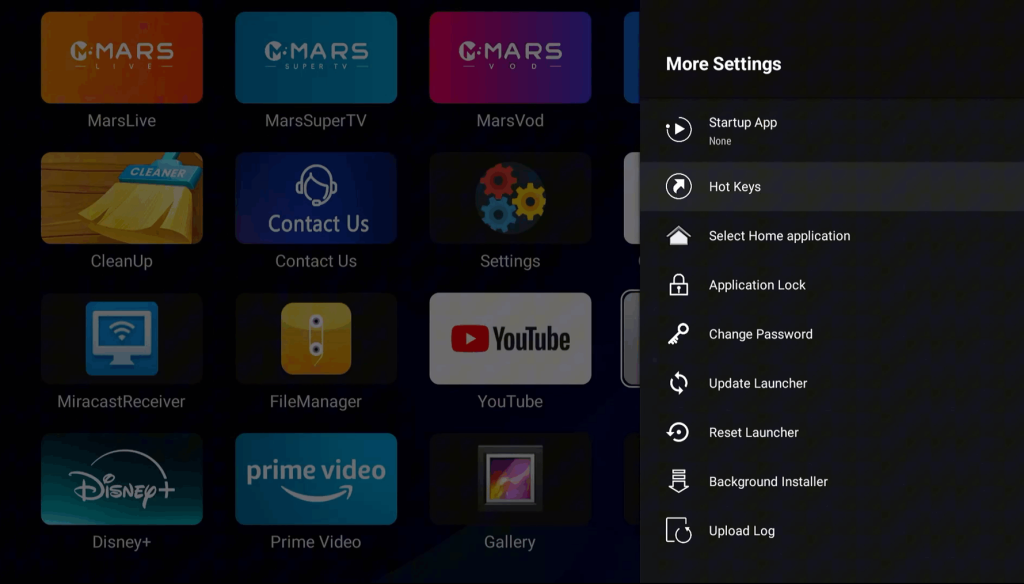
2. Go to Device Control Settings
Locate and open Device Control Settings. This menu allows you to manage remote functions, including customizing color-coded shortcut keys.

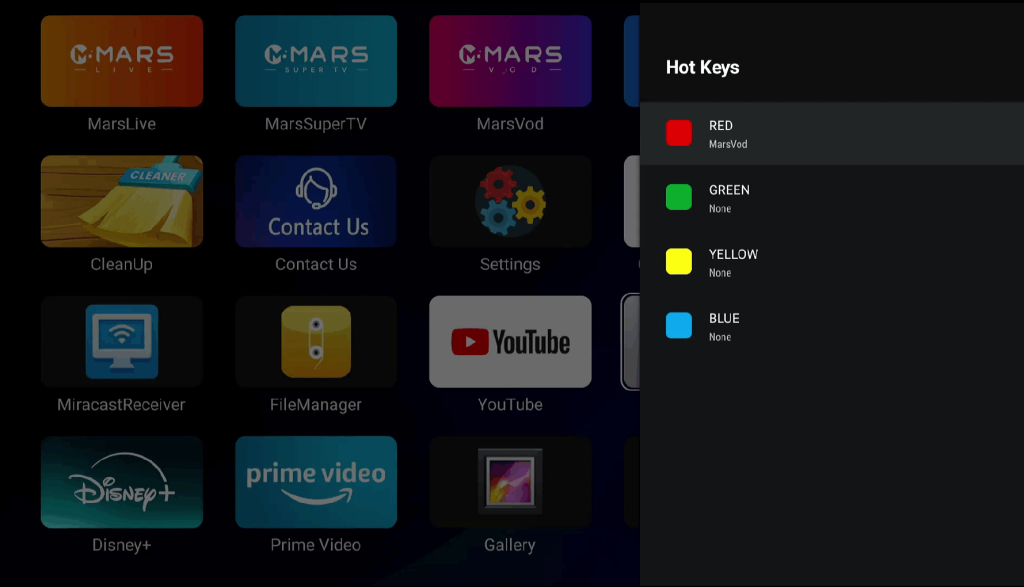
3. Find and Click Shortcut Keys
Click on the Shortcut Keys option to start the assignment process. Here, you can select the red, green, yellow, or blue buttons for customization.
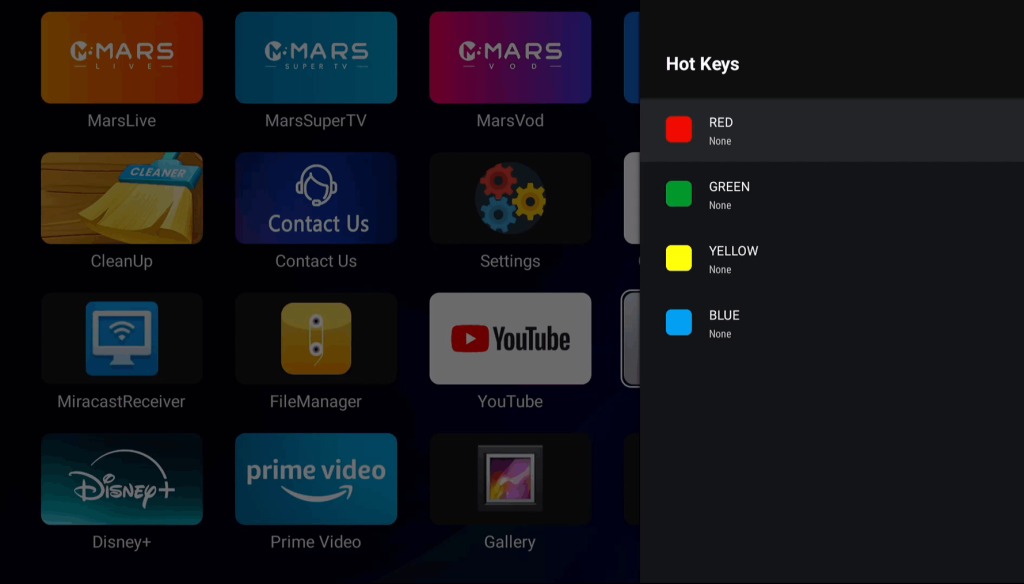
4. Select a Key Color
Choose the color key you want to assign a function to. Click Confirm to proceed. Each color key can launch a different app or function.
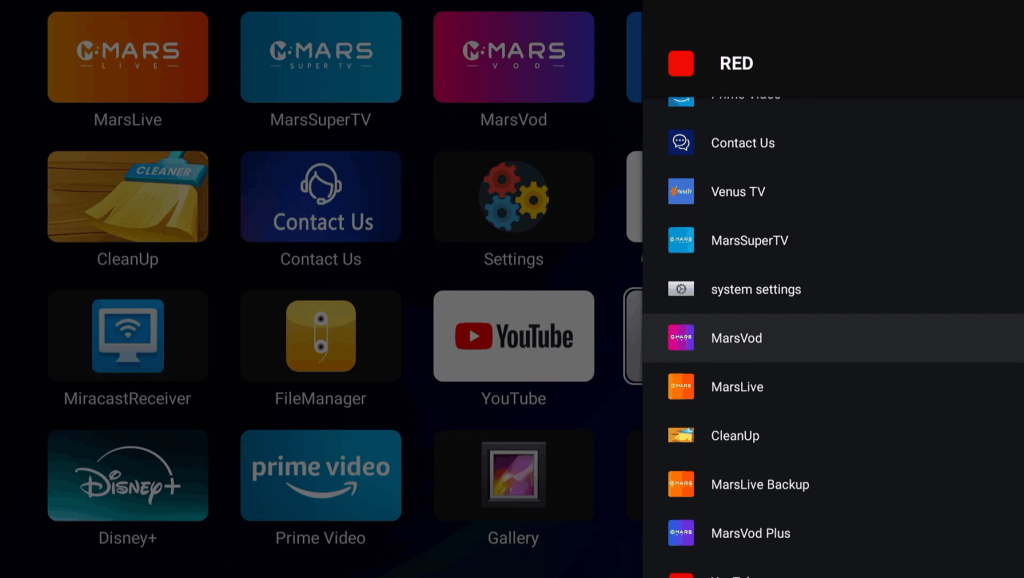
5. Assign the Desired App
Pick the app or function that you want the shortcut to trigger. Popular choices include:
Streaming apps: Netflix, YouTube, Disney+, Prime Video
Media players: VLC, MX Player
Smart home apps: Google Home, Alexa controls
Settings or device control shortcuts: Volume, input source, picture modes
6. Complete the Setup
Once assigned, pressing the selected color key will launch your chosen app immediately. No more scrolling through menus—your most-used apps are just a single click away!
Important Note: After setting a shortcut, the original default function of the color button will no longer work. Make sure to assign functions you use frequently.
Advanced Tips for We2usat Remote Shortcut Keys
Combine with voice control: Many We2usat devices support Bluetooth remote with voice commands. You can pair shortcut keys with voice shortcuts for maximum convenience.
Use for multi-app management: Assign color keys to different types of apps—one for streaming, one for media playback, one for settings, and one for smart home controls.
Experiment with app order: Test different combinations to find the most efficient setup for your viewing habits.
Regularly update your apps: Shortcut keys work best with the latest app versions, ensuring smooth performance.
Conclusion
Customizing red, green, yellow, and blue shortcut keys on your We2usat smart TV remote is a small step that brings huge convenience. With a personalized remote setup, you can enjoy faster app access, simplified navigation, and a smarter TV experience. Whether you’re a casual viewer or a power user, these shortcut keys help you control your smart TV like a professional.
Start customizing your We2usat remote today and experience ultimate convenience in smart TV control!