Are you ready to unlock the full potential of your We2usat P6 Mini Android TV stick? This comprehensive guide will help you set up your device quickly and enjoy seamless streaming, gaming, and entertainment. Whether you’re a first-time user or upgrading from an older TV stick, this step-by-step tutorial ensures a smooth start.
1. Check Your Accessories
Before starting, make sure your We2usat P6 Mini package includes the following items:
- We2usat P6 Mini TV stick
- Power adapter (5V/2A)
- Bluetooth voice remote control
- User manual
If any item is missing, contact your retailer or customer service immediately.
2. Connect to Your TV
Plug the HDMI port of the We2usat P6 Mini into your TV’s HDMI IN port.
For detailed port analysis, visit: “We2usat P6 Mini Device Interface Analysis.”
3. Power Connection
Insert the DC plug of the power adapter firmly into the device’s 5V 2A port. Make sure it’s fully connected.
Then, plug the adapter into a wall socket. Using a socket with a separate switch is recommended for easy power cycling.
Optional: You can power the device via your TV’s USB port if it provides 5V/2A output. Otherwise, use the dedicated power adapter.
Turn on your TV or monitor and select the correct HDMI input using your TV remote.
4. Initial Setup
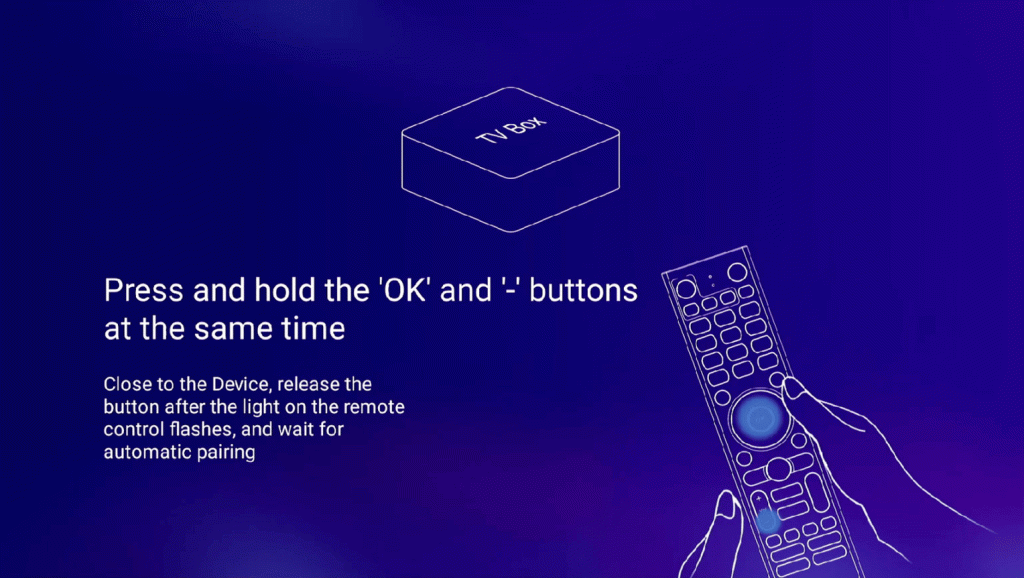
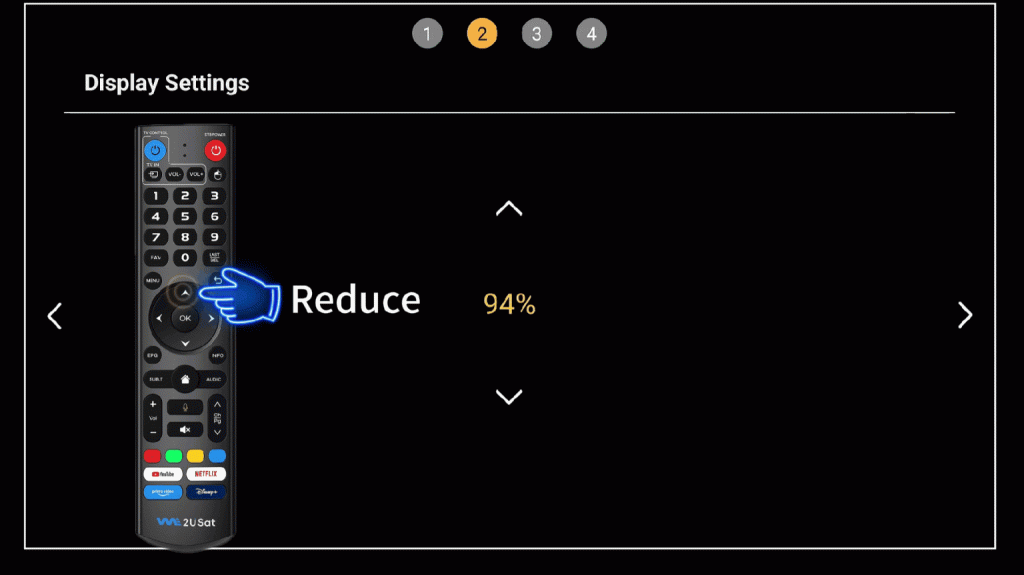
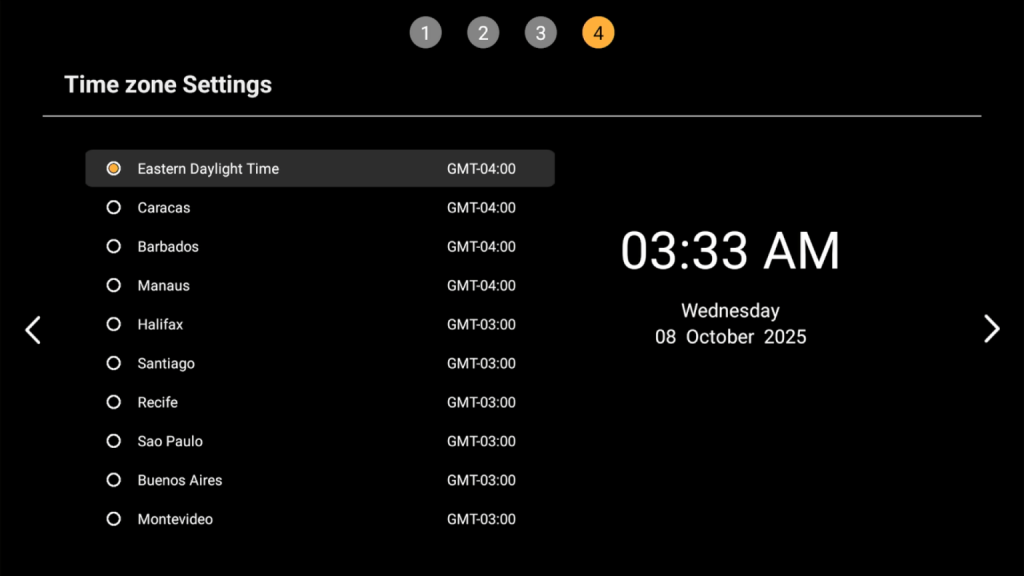
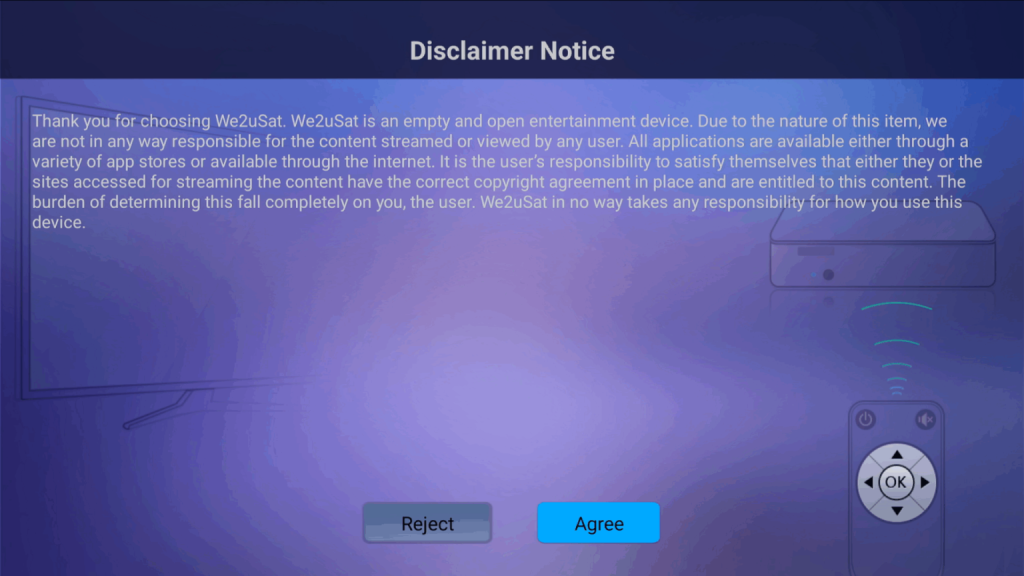
Once the hardware is connected, follow the on-screen setup wizard to configure the software.
5. Power On the Device
Press the Power button on your We2usat Bluetooth remote. The device’s indicator will change from red to blue, signaling startup.
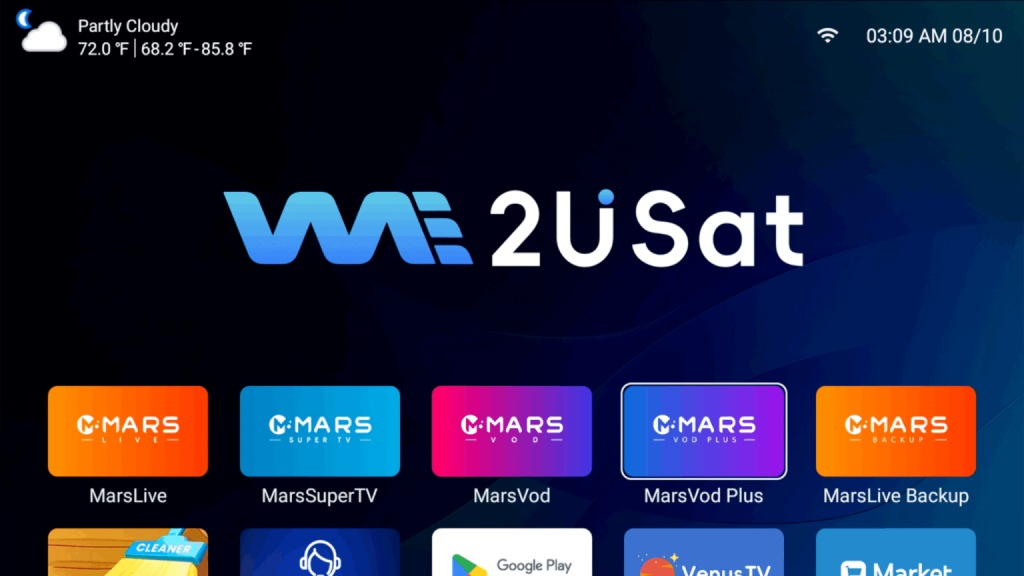
The TV will display the We2usat logo and boot animation. Wait patiently and do not disconnect the power during this process, as it may damage the system.