
Using WE2USAT, you can enjoy free access to over 5000 live TV channels and more than 10,000 on-demand videos. A stable internet connection is the key to a smooth streaming experience. This guide will help you troubleshoot and resolve Wi-Fi issues, ensuring that your streaming experience is free from interruptions.
Wi-Fi Wireless Connection
Step 1: Check Your Connection
Access Network Settings:
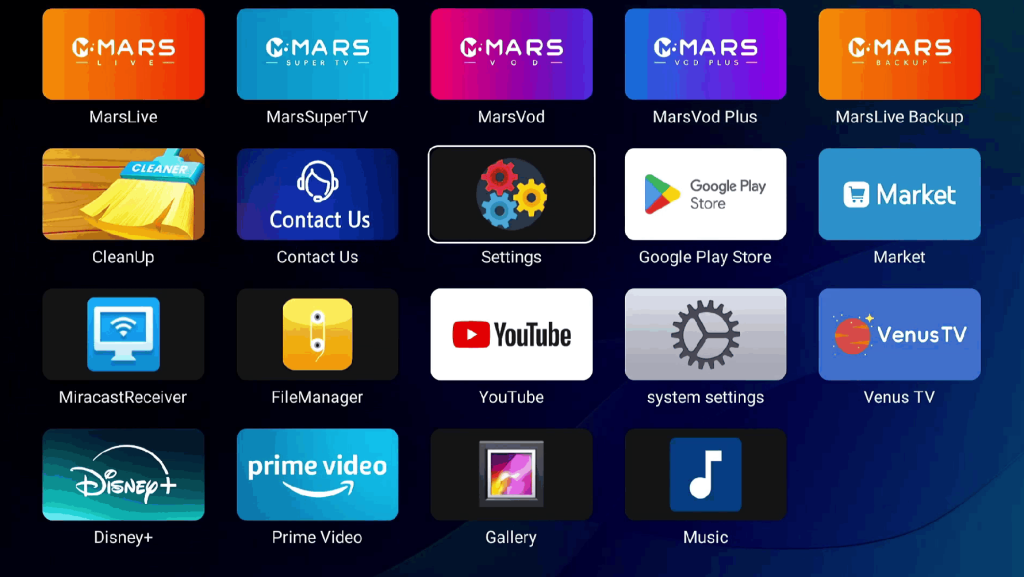
Press the “Home” button on your remote control to go to the main screen.
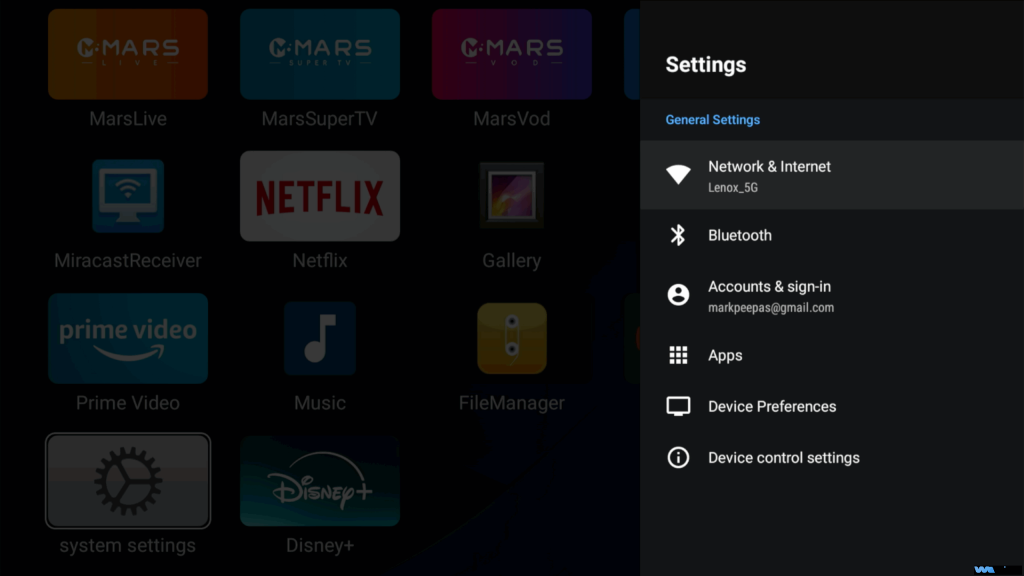
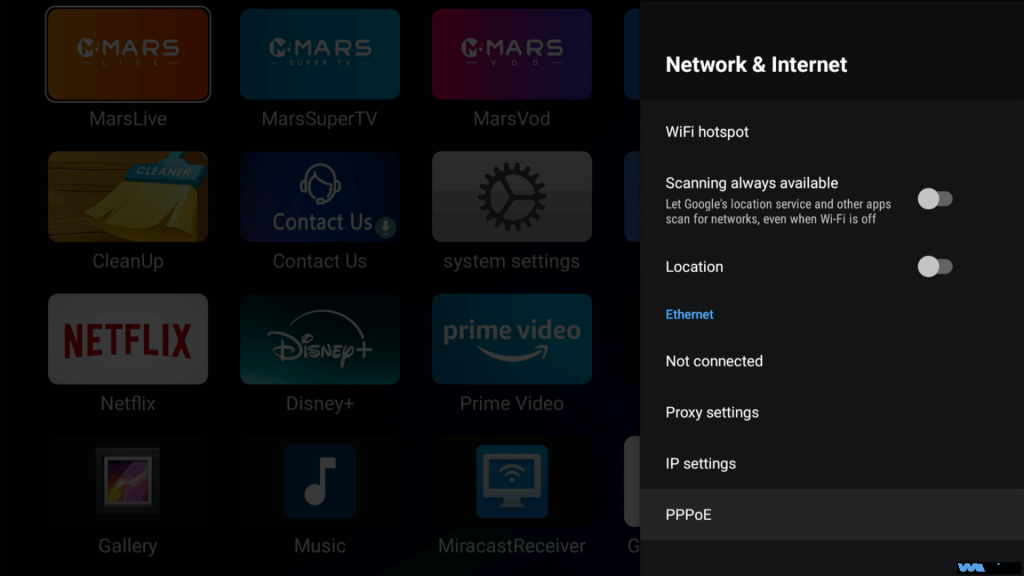
Navigate to and open the Settings menu, then select Network and Internet → Wi-Fi. The system will automatically scan for available networks.
Check Connection Status:
Find your Wi-Fi network (SSID) and check the connection status:
“Connected”: The password is correct, and the Wi-Fi connection is stable. You can proceed to test playback.
“Saved” (or “Remembered”): This indicates that the device has stored the password, but is not currently connected to the network. This is usually due to an incorrect password. Double-check for typos, case sensitivity, or missing special characters. Press and hold the Wi-Fi name, select “Forget Network,” and then carefully re-enter the password (using the included Bluetooth keyboard can help).
“Connection Failed”: First, check if your router is working properly (check if the lights are steady green). If the router seems fine, try reconnecting.
Optimize Signal Strength:
After successfully connecting, look at the Wi-Fi icon in the top right corner of the main screen. Fewer signal bars indicate a weaker signal. Consider moving the device closer to the router for a stronger connection.
Confirm IP Settings:
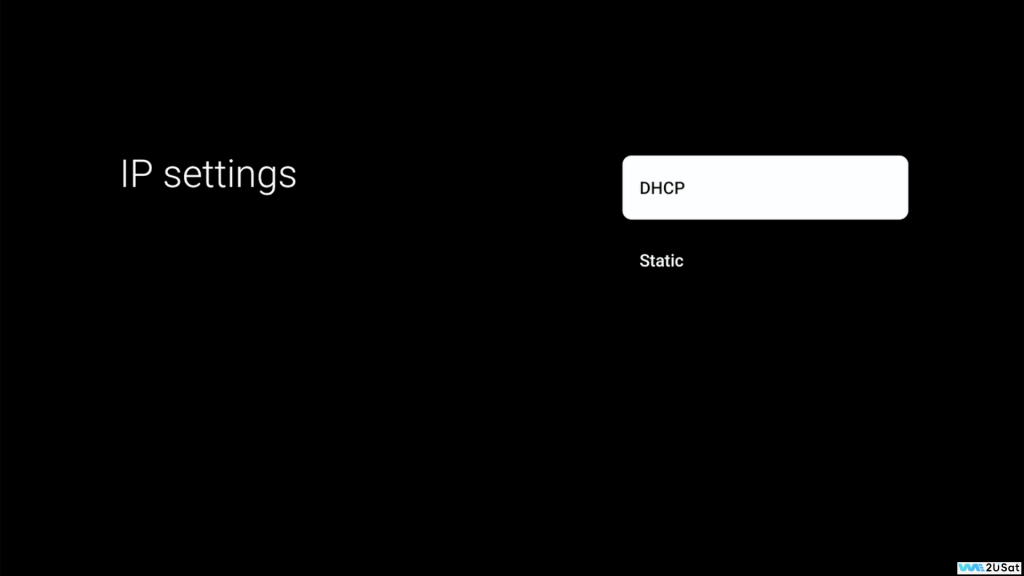
Navigate to Settings → Network and Internet → IP Settings, and ensure that IP Settings is set to “DHCP” mode. In this mode, the router will automatically assign an available IP address, avoiding conflicts that might occur from manually setting an IP.
If you’re using a wired Ethernet connection, please refer to the “WE2USAT Ethernet Network Troubleshooting” guide.
Step 2: Common Wi-Fi Issues and Solutions
Cannot Connect Using the Correct Password
Restart your router (unplug for 30 seconds, then plug it back in). Wait for the device to restore its network signal.
Check if your router has “MAC Address Filtering” enabled. If it’s on, add the WE2USAT MAC address to the allowed list to prevent the device from being blocked.
Try connecting to a mobile hotspot (ensure you have enough data). If the connection works, the issue might be with your home Wi-Fi, and you should contact your Internet Service Provider (ISP).
Connected, but Frequent Buffering
Use a Network Speed Test app. If the speed is below 8 Mbps, close apps that consume a lot of bandwidth on other devices (e.g., file downloads, online gaming).
If your router supports it, switch to the 5 GHz frequency band. This band usually experiences less interference and offers more stable streaming.
Move the WE2USAT device closer to the router to reduce signal loss and improve stability.
Wi-Fi Icon Shows but No Internet Connection
Go to Wi-Fi Details and check the IP address. If the IP starts with “169.254.xx,” the IP is invalid. Restart the router to obtain a new, valid IP address.
Check the router’s internet connection: Connect a phone or computer to the same Wi-Fi network and test the internet. If other devices can’t access the internet either, this suggests the router isn’t connected to the internet. Check the router’s connection to the modem, or contact your ISP for assistance.